1. Open any images

2. use Lasso Tool to create a shpe (for the hole), double click on Quick Mask tool, Color Indicates:Masked Areas;Opacity:50%
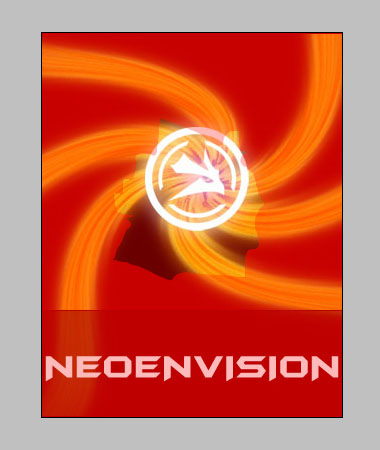
3. Apply Filter---> Pixelate--->Crystallize, Cell size lets say 7 (as long as it looks pleasing)

4. exit quick mask mode, go to channels panel, select Save selctions as channel, then go back to layers panel
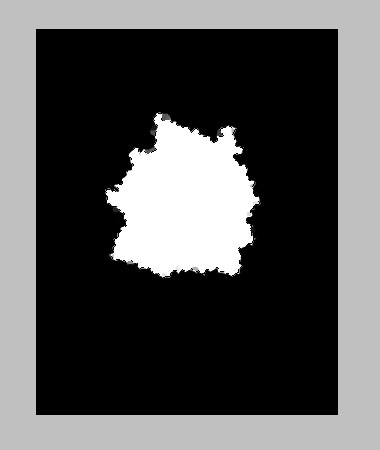
5. create a new layer, fill selection with white color

6. go to select ----> modify ---> expand, 5 pixels
7. ctrl+alt+d, feather radius 4 pixels
8. Select---> Load Selection.
Channel:Alpha1;Operation:Subtract from Selection
9. click on background layer, CTRL+U, Hue: 14, Saturation: 29, Lightness: -61

10. keep selection, ctrl+j, copy selection via layer
11. go to blending option, drop shadow, opacity: 75, angle 120, distance 3, sspread: 19, size, 24

12. now add a stoke (in layer style) for the white piece in the top layer, use a color abit darker than the background of the image, position is inside, here we go.