


1) Make a 400x400 document. Now press "D" on your keyboard to reset the foreground and background colors to black and white.
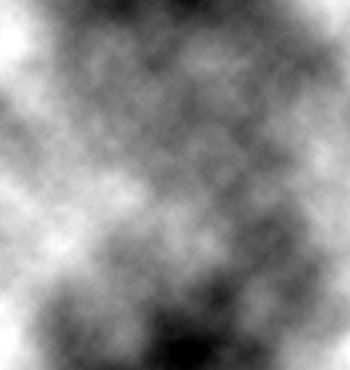
2) Now apply Filter>Render>Clouds. Now we want to make the clouds a bit darker, we do this by going to Image>Adjustments>Auto Levels. Your image should look somewhat like this:
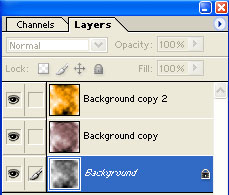
3) Now we want to duplicate the layer 2 times. Your layer window should look like this:
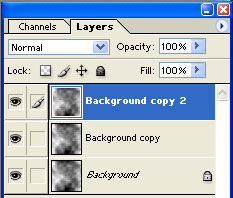
4) We want to apply blending changes the the 2 duplicated layers, these are the blendings changes you need to do, use the settings on these graphics:
Background Copy 2 Layer Settings:
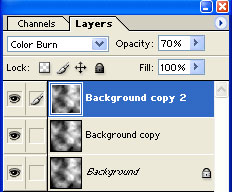
(Add Color Burn blending option and 70% Opacity)
Background Copy Layer Settings:
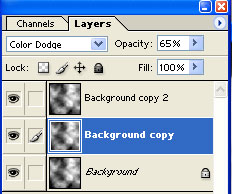
(Add Color Dodge blending option and 65% Opacity)
5) Now we apply color to the Background Copy layer. Select the Background Copy layer and press CNTRL+U to activate the Hue/Saturation window. Use these settings:
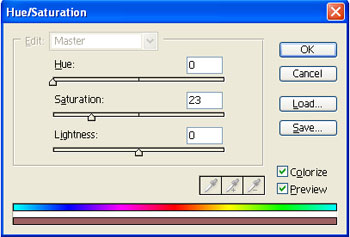
6) Now we want to apply color to the Background Copy 2 Layer, this will make the fire look realistic! Click the Background Copy 2 Layer and press CNTRL+U to launch the Hue/Saturation window again. Use these settings:
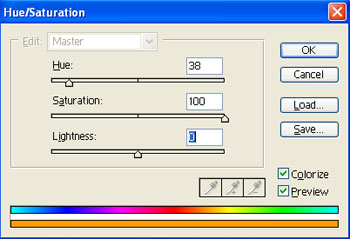
Your Layers window should look like this, if it is then you did it right!
Your now finished, your explosion should look similar to this:
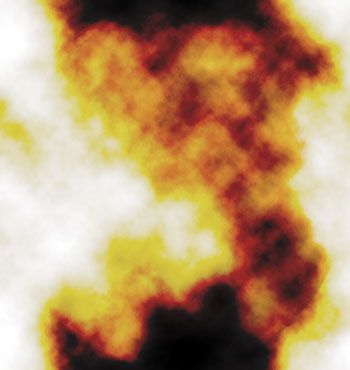
Also remember, the Clouds filter is very random, it generates a different display each time, so your explosion won't be the exact same as mine.
