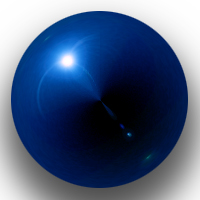
1. Open a new Image 200x200px. Make a new layer and fill it with black.
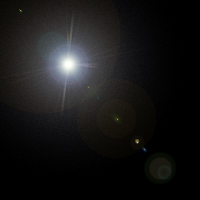
2. Now go to filter>>render>>lens flare. Choose 105mm Prime and brightness to 100%.
It should look something like this:
3. Go to filter>>distort>>polar coordiantes and choose "Polar To Rectangular".
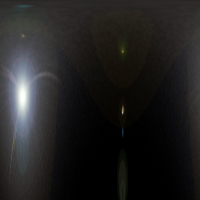
4. Go to image>>rotate canvas>>flip canvas vertical.
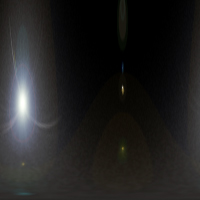
5. Go to filter>>distort>>polar coordiantes and choose "Rectangular To Polar" this time.
You can see a kind of orb already: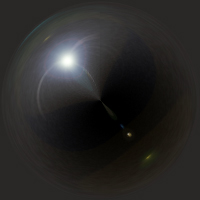
6. Select the "Elleptical Marquee Tool" hold shift and select the inside of your orb and cut it by pressing ctrl+X.
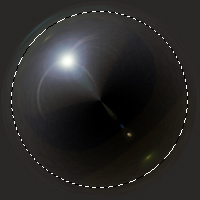
7. Open a new Image 200x200px and paste the orb (ctrl+V).
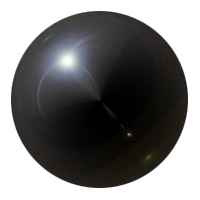
8. Now press ctrl+u and select colorize or press ctrl+b (i chose ctrl+b) and choose a color you want.
You can add a drop shadow like i did. Your done!!