You are going to learn how to create an animated gif using photoshop to create the main image, and then jumping to ImageReady to animate it!.
Step 1: Create a new 400x150 document with a transparent background. Since this is a tutorial about animated gifs, I'm not going to get to fancy with the image. Apply a red-black gradient for the background, and create some white text. I used the arial font for my text at size 36. Move the text to the left.

Step 2: Click the jump to image ready button (located at the bottom of the main toolbar) to launch imageready with your image already loaded into it.

Step 3: Once you are in imageready, open up the animation window by going Window > Animation. You should now see one slide of your picture. Set the text's opacity to 0% and then click create duplicate frame in the animation window. You should now see two slides/frames of your image.
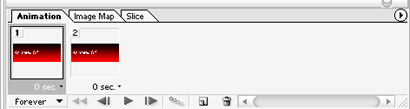
Step 4: Make sure you have the second frame selected, and then change the text's opacity to 100% and move it to the far right. Now select the first frame and click the tween animation frame button (the button with four circles). Set it up like this:
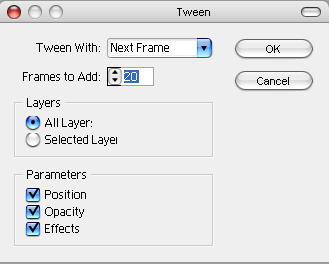
Step 5: You should now see that Imageready has added quite a bit more frames in the animation window. To test your animated gif out, just press the play button. To save it as an animated gif, go to File > Save Optimized As..... and save it as a gif! That's it, you're all done!