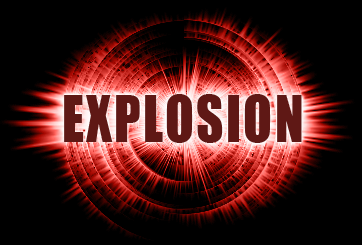
Note: This tutorial is done by Adobe Photoshop CS
1. Open a new window with WIDTH 400, HEIGHT 400, and black background. With capital letters type a word, in my case I have typed EXPLOSION, make the color of the word white.
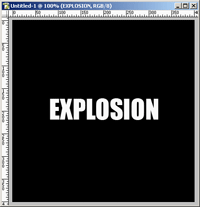
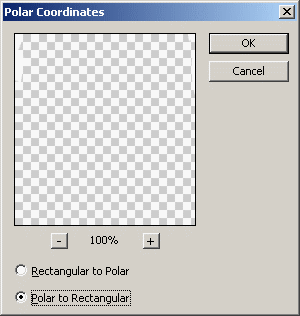
2. Right click on your Text Layer (EXPLOSION) and Rasterize Layer. Now go to Filter>Distort>Polar Coordinates and Choose Polar to Rectangular and click OK.
3. By now you should have something like this:
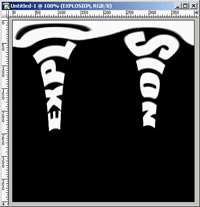
Next go to Filter>Stylize>Wind and choose Method: Wind and Direction: From the Right.
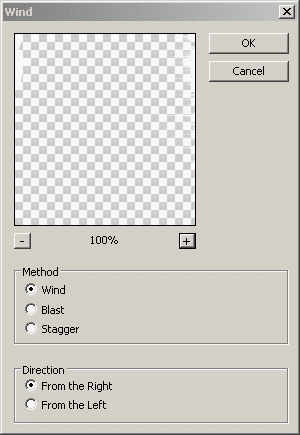
Press Ctrl+F to apply this effect one more time.
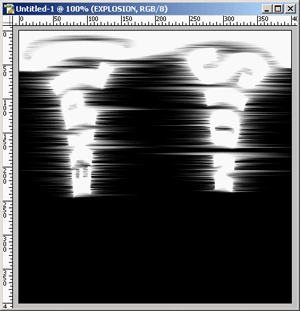
4. Do this effect again but this time choose Wind, From the Left for Direction. Apply it again by pressing Ctrl+F. You should have something like this.
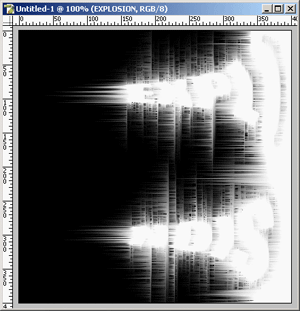
5. Now go to Image>Rotate Canvas>90%CW and apply the Wind effect again with From the Right option. Press Ctrl+F to apply this effect one more time.
Now go to Image>Rotate Canvas>90%CCW to restore the image to its initial position.
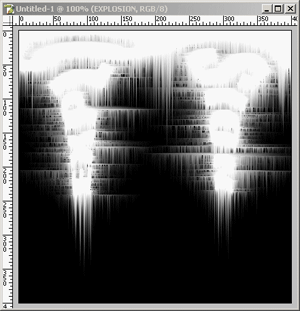
6. And finally go to Filter>Distort>Polar Coordinates this time select Rectangular to Polar and press OK. You should have this final effect.
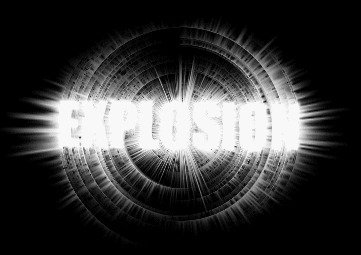
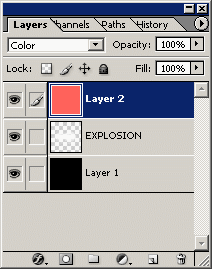
7. You can color it to make the explosion look more real. What I did was I created new layer above the explosion effect and filled it with Red and changed the Layer option to Color.
8. Final Effect!