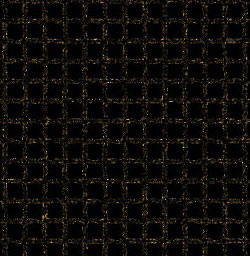
Create a rusted grid to add to your industrial interface.
1. Select the 'Rectangular Marquee Tool' , and in the Options Bar, set the Style to 'Fixed.' Enter the parameters you want, I used 18x18 pixels.
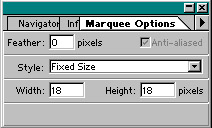
2. Make a selection on the canvas.

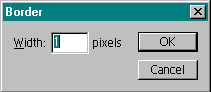
3. Go to Select>Modify>Border and make the border 1 pixel wide. Fill the border selection you just created with black.

4. Use the 'Rectangular Marquee Tool' to select the outside of the little square border. Once you've done that go to Edit>Define Pattern. Create a new blank layer. With the new layer active, go to Edit>Fill and fill the layer with the new pattern that you have just created.

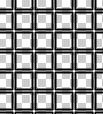
5. Delete the layer that you started with. Now you should just have the one layer with the pattern on it, with this layer active, Ctrl+click (Mac: Command+click) on it to select the grid. With the whole grid selected, fill it with black to make it darker.

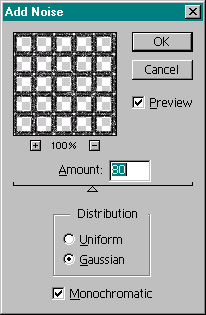
6. Hit Ctrl+D (Command+D) to deselect the pattern. Then, go Filter>Noise>Add Noise with these settings.
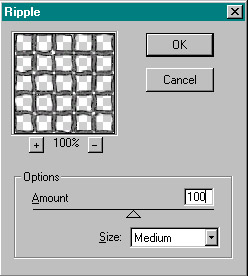
7. Add a Filter>Distort>Ripple with these settings.
8. Once you've done that, hit Ctrl+U (Command+U) to bring up the Hue Saturation menu. Use these settings - Hue: 38, Saturation: 49, Lightness: 2. And you're done. It should turn out something like the image to the left.