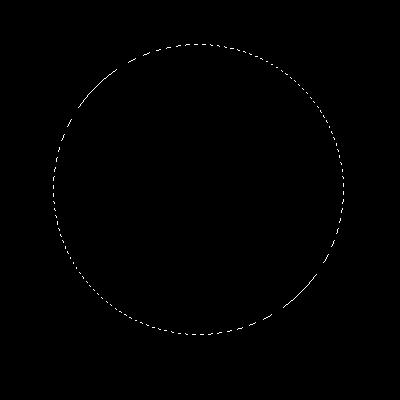
Start a new document 400x400px. Fill the background in black draw a prefect circle marquee in the middle of the canvas (use shift to make it form a perfect circle).
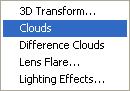
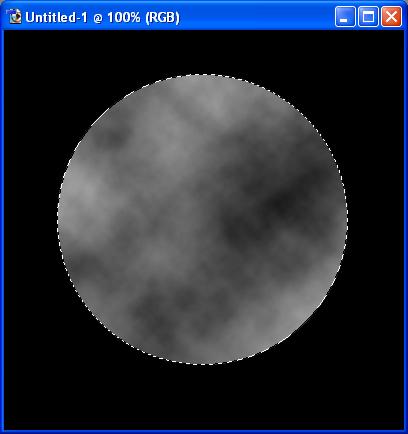
Then go to filter>render>clouds.
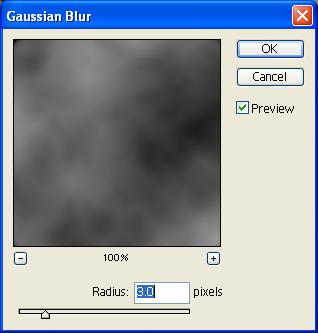
Apply a gaussion blur of 3px.
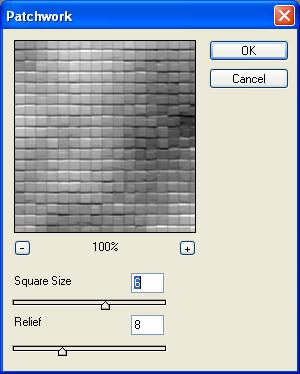
Then go to filter>texture>patchwork and use 6 and 8 for the settings:
Next use filter>distort>spherize.
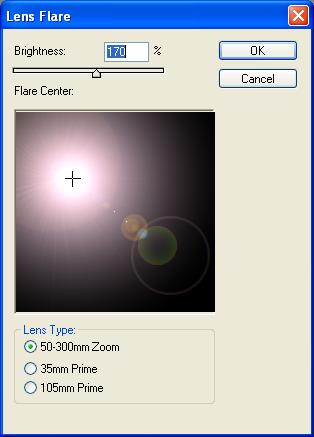
Press ctrl+d to deselect the shape and go to filter>render lens flare and us settings like below
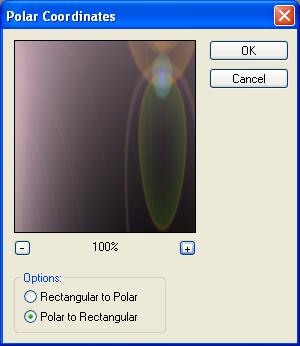
Go to filter>distort>polo coordinates>polar to rectangular:
Flip the canvas vertical:
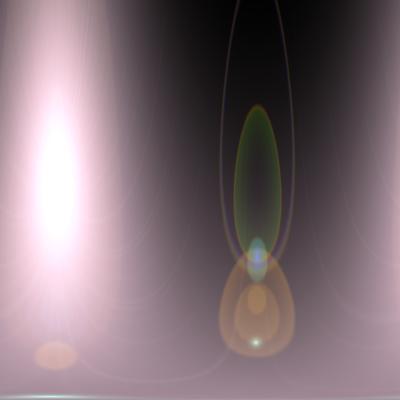
Use polar coordinates on use rectangular to polar this time:
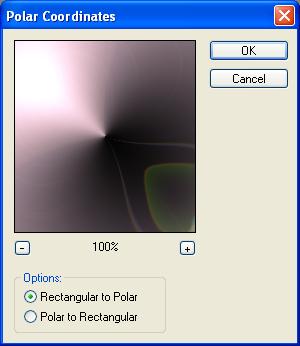
Draw a selection round the point in the new formed orb, then press ctrl+d and set the radius to 60.
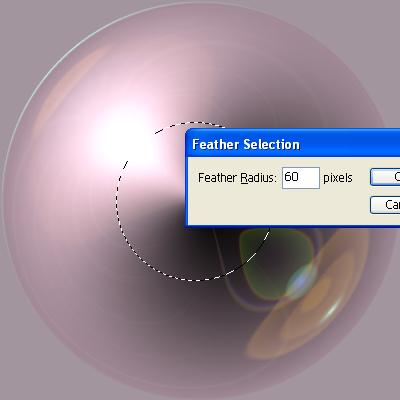
Go to filter>blur>guassion blur and use setting of 20:
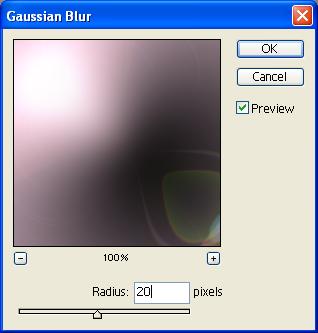
Draw a selection like the one below and hit ctrl+shift+i and then press delete.
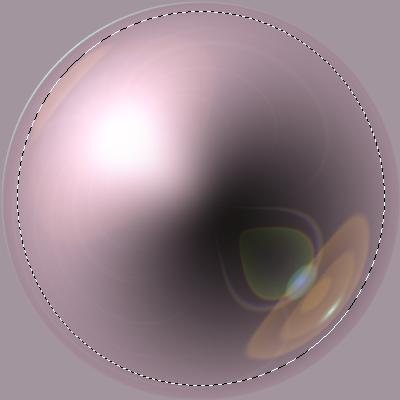
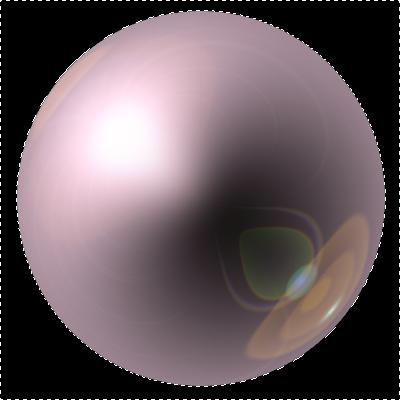
Select the orb by ctrl+clicking on the layer and re size so its about the same size as the first ball we made.
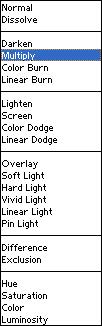
Then go to layers blending mode and set it to multiply.
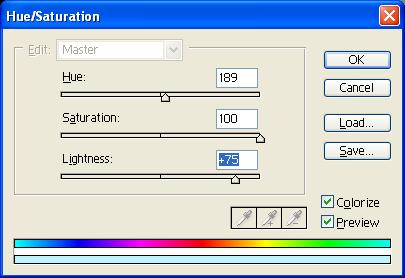
Next press ctrl+u and use settings similar to mine (you may need to play around with the settings to get it look right).
Now just make your ball about half the size.
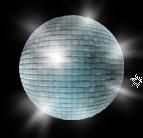
And there is you complete disco ball.
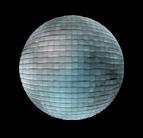
I added some shiny highlights to finish mine off.