1. Create a new 300x300 pixel document and name it Solar Wind. Now press D and fill the document (with Black). Then, create a horizontal type mask, press X and then fill (with white), all of this on one layer.

2. Now, apply a gaussion blur with settings [Radius: 4px]. Then apply a solarize filter. Now apply auto levels.

3. Now copy the layer and name it 'inside lighting'. Now distort to polar coordinates with settings [Polar to Rectangular]. Then rotate the canvas 90° CCW (counter clockwise).
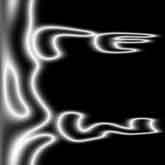
4. Then invert the layer and apply a wind filter with settings [Method: Wind, Direction: From the Right]. Apply it again then invert again and apply the wind filter once again.
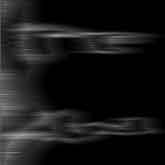
5. Now rotate the canvas 90° CW (clockwise), then distort to polar coordinates with settings [Rectangular to Polar]. Then rotate the canvas 90° CCW (counter clockwise). Next, you can add some color by creating
a new layer. Then fill it with a color of your choice. Then change the blending mode to 'color'. Now merge the color layer with the 'inside lighting' layer.

6. Lastly, change the blending mode to 'hard light' . If you wish you can look at all the other blending modes because they give some cool outcomes as well.