Her

Home Photoshop Tutorials Photo Editing Inverting brightness

Inverting brightness

Author: FotoFects Author's URL: http://www.fotofects.com More by this author

Two simple methods for inverting an image without changing the colours.


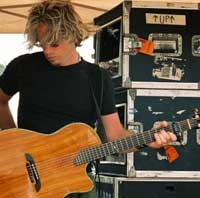
image 1 1. Open the image for editing.

image 2 2. Invert (Ctrl+I) the current layer. The image is now inverted but the colours were inverted as well.

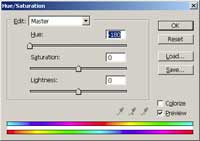
image 3 3. To change the colours back to their original colours, use the Hue/Saturation tool (Ctrl+U) and set the Hue to either -180 or 180. Both values will give the same effect.

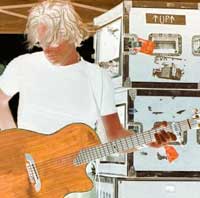
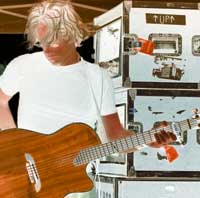
image 4 4. This is the result of inverting using the Invert and the Hue/Saturation tool. Rollover the image in this step to see the original image before this Photoshop technique was applied.

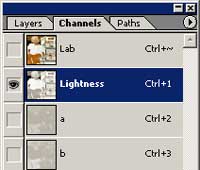
image 5 5. An alternative to inverting using the Invert and Hue/Saturation tool would be to invert just the Lightness of the image. Change the image mode to Lab Color (Image> Mode> Lab Color). In the Channels pallet (Window> Channels), select the Lightness channel and Invert (Ctrl+I).

Inverting Brightness 6. Inverting the Lightness channel in Lab Color mode gives a slightly different effect. Rollover the image in this step to see the original image before this Photoshop technique was applied.