

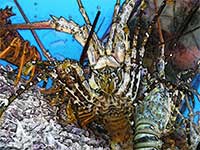
A highly detailed watercolour painting with a pen outline.
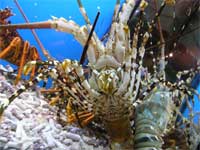 |
1. Open the image for editing. |
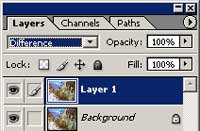 |
2. Duplicate the layer (Ctrl+J) and change the blending mode to Difference. |
 |
3. On the new layer, add a Chrome filter (Filter> Sketch> Chrome) with the following properties:
Detail: 10
|
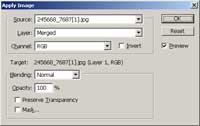 |
4. With the top layer selected, use the Apply Image tool (Image> Apply Image) to apply the following properties:
Layer: Merged
|
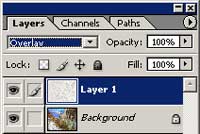 |
5. Change tle blending mode of the current layer to Overlay. |
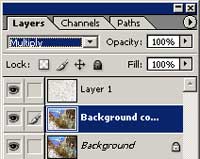 |
6. Duplicate the Background layer (Ctrl+J) and change the blending mode to Multiply. |
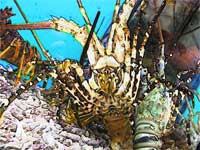 |
7. Add a Find Edges filter (Filter> Stylize> Find Edges). |
|
8. Desaturate (Ctrl+Shift+U) the current layer. Rollover the image in this step to see the original image before this Photoshop technique was applied. |
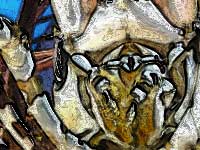 |
9. Here is a crop from a high resolution image. |
