


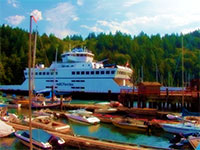
Add a vivid fog effect that will enhance the saturation of your image.
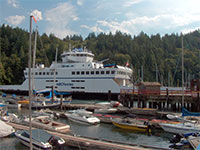 |
1. Open the image for editing. |
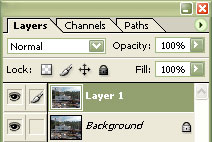 |
2. Dupliate the current layer (Ctrl+J). |
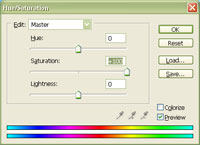 |
3. On the new layer, use the "Hue/Saturation" tool (Ctrl+U) to increase the "Saturation" to "+100". Click OK. |
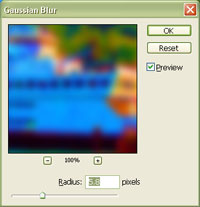 |
4. Use the "Gaussian Blur" filter (Filter> Blur> Gaussian Blur) and select a "Radius" that will remove any hard edges. Click OK. |
|
5. Set the current layer's blending mode to "Soft Light". Rollover the image in this step to see the original image before this technique was applied. |
