


| Introduction Learn to make a great Pill Button |
| Step 1 Make a new document of 300x200 pixels. Make a new layer, Select the  on your toolbar.
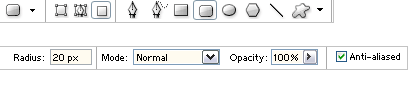
Once selected change the Rounded Rectangle tool settings to these: on your toolbar.
Once selected change the Rounded Rectangle tool settings to these:
|
 |
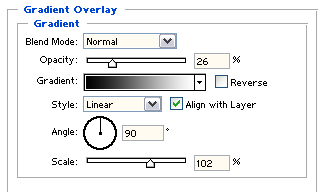
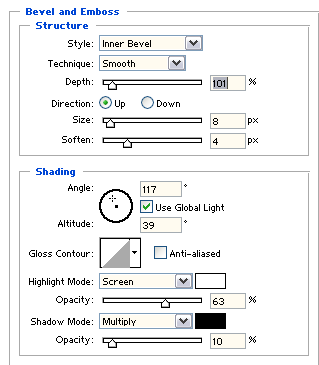
| Step 2 Now, go to Layer > Layer Style > Blending Options > Gradient Overlay and enter in these settings:
|
|
| Step 3 Now hold CTRL and click the Button layer, on your layers palette. Now go to Select > Modify > Contract and enter in 10 pixels. Once again go to Select > Modify > Feather and enter in 10 pixels. Select your Bucket Tool, and set your foreground white. Fill the selection with white using the Paint Bucket¹ tool. |
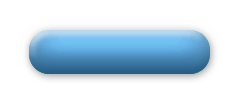 |
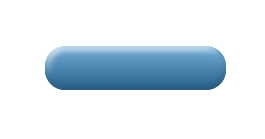
| Final Results Now you can add text, to make the button a little more exciting. |
 |
