


| Introduction Try learning to make a marble button, to suit your website. |
| Step 1 First create a new document (CTRL + N) and make the size 500x500 pixels. Select your Rectangle Marquee Tool and make a fixed size of 101x26, and fill it in with a light blue colour. |
 |
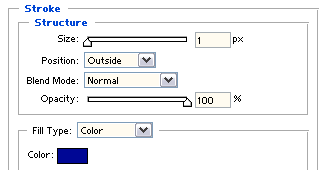
| Step 2 Once you've done that go to Layer > Layer Style > Blending Options > Stroke and use the settings as shown below (image): |
 |
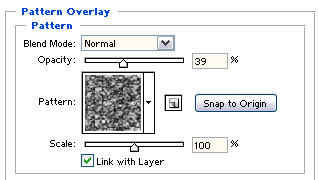
| Step 3 Once you've done that, simply go straight to Pattern Overlay and enter in the settings as shown below (image): |
 |
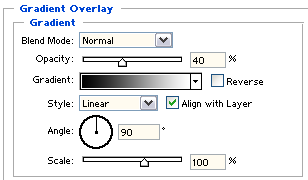
| Step 4 Now go to the Gradient Overlay and enter in the settings as shown below(image): |
 |
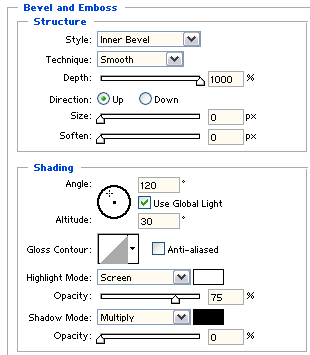
| Step 5 Go to the Bevel and Emboss section and enter in the settings as shown below (image): |
 |
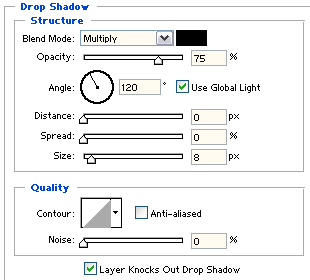
| Step 6 Now go straight to the Drop Shadow section and enter in the settings as shown below (image): |
 |
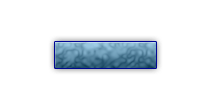
| Step 7 You should now have something that looks a little like the image shown below. You can also add text to your button to make it stand out a bit more. |
|

| I hope you enjoyed the marble button tutorial. |
