Her
Home
Photoshop Tutorials
Text Effects
Create Graffiti Text Design
Create Graffiti Text Design
Author: Danny Keane
Author's URL: www.netcubo.com
More by this author
Added:Mar 14, 2005 Rating:
Less than 3 votes yet
Level: Beginner Software:
Photoshop
Introduction
In this short and easy tutorial you will be able to create some
amazing graffiti text for your graphics and websites. |
Step 1
First create a new document (File>New) and make the it any size
you want it to be to fit your needs. I used 350x250 px for this tutorial.
Then click
here to download the image for the brick effect. |
Step 3
Now we are going to make this text look a bit more graffiti like
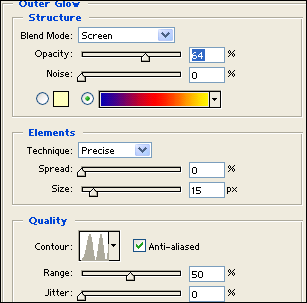
by adding some layer blending options. First we are going to add an outer
glow for the text (Layer>Layer style>Outer glow) Follow the settings
in the image bellow. |
Step 4
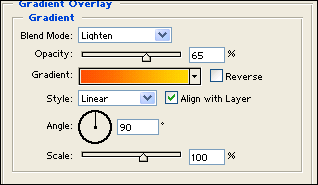
Now we are going to add a Gradient overlay (Layer>Layer style>Gradient
overlay), this will add more colour to your text and make it look nicer. |
Step 5
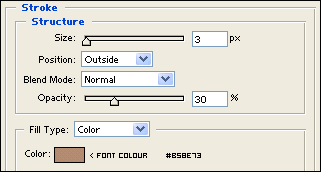
Going towards the end of this tutorial all we need to do now is
add a stroke to our graffiti text. (Layer>Layer style>Stroke) |
Step 6
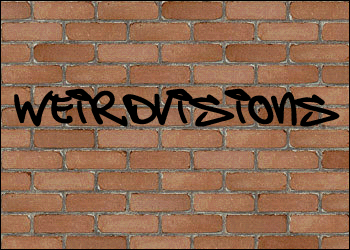
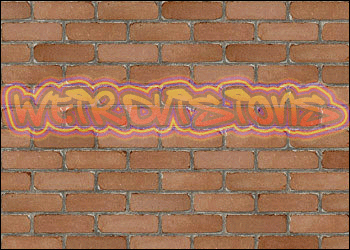
Now your graffiti text should look something like the image below.
If you feel that the colour I have chosen for this tutorial doesn't suit
your graphic/websites colour please feel free to change the Gradient Overlay
colour. |