

Transform your photograph into a gradient vector artwork.
 |
1. Open the image for editing. Simplier photographs creates better results. |
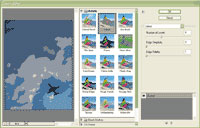 |
2. Apply a "Cutout" filter (Filter> Artistic> Cutout) to the current layer. Set the "Edge Simplicity" and "Edge Fidelity" to "0" and set the "Number of Levels" to the lowest value possible without erasing important parts of the photographs. |
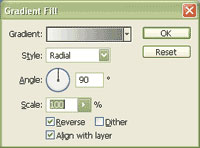 |
3. Add a new "Gradient Fill" adjustment layer (Layer> New Adjustment Layer> Gradient fill) and select a gradient you would like to have in your photograph. |

|
4. Try using the "Median" filter (Filter> Noise> Median) to make the edges smoother. Rollover the image in this step to see the original image before this technique was applied. |
