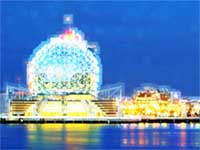
Here's a unique way to add a contempory design to your photographs. Create areas around highlights that glows in the shape of a square.
|
|
1. Open the image for editing. |
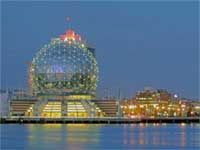
|
|
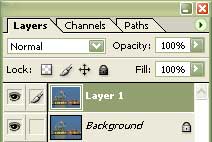
2. Duplicate the current layer (Ctrl+J). |
|
|
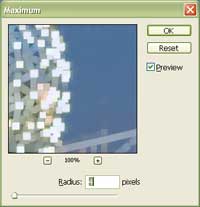
3. On the new layer, apply a "Maximum" filter (Filter> Other> Maximum). Select a "Radius" that will remove most colours without losing its shape. Click OK. |
|
|
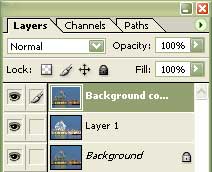
4. Duplicate the layer "Background" (Ctrl+J). |
|
|
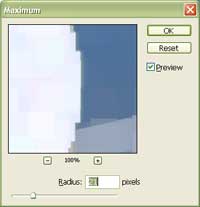
5. With the new layer selected, apply a "Maximum" filter (Filter> Other> Maximum) and select a "Radius" at least twice the size of the "Radius" you've used in step 3. Click OK. |
|
|
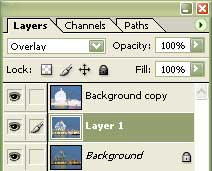
6. Change the blending mode of the top two layers to "Overlay". |
|
|
7. Reduce the opacity of hte top two layers to reduce the effect. Rollover the image in this step to see the original image before this technique was applied. |