

Add a reflection to your photographs to make it look like it was taken though a window.
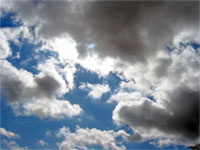 |
1. Open the image that will serve as the reflection of the window. |
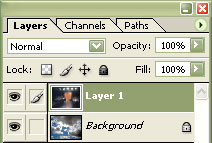 |
2. Drag the image that will be behind the window into the document as a new layer. |
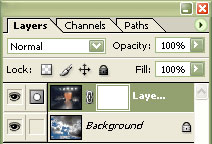 |
3. Add a layer mask to the top layer (Layer> Add Layer Mask> Reveal All). |
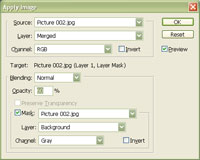 |
4. With the top layer's layer mask selected, use the "Apply Image" tool to apply the following properties:
Source: filename
Click OK. |
|
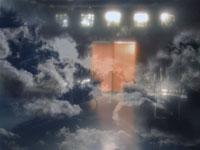
5. Your image now looks like it was taken though a window with a reflection. Try using different images as the reflection. Rollover the image on the left of this step to see the original image before this technique was applied. |
