

Glowing glass tiles with rounded corners.
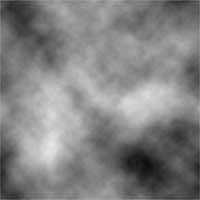 |
1. Create a new 500x500 pixels document and add a Clouds filter (Filter> Render> Clouds). |
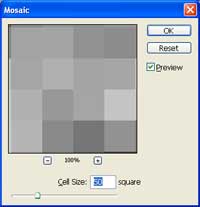 |
2. Add a Mosaic filter (Filter> Pixelate> Mosaic) with a cell size of 50 square. |
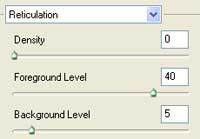 |
3. Apply a Reticulation filter (Filter> Sketch> Reticulation) with these settings:
Density: 0
|
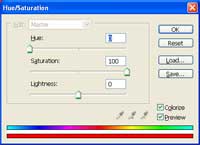 |
4. Colorize the layer using the Hue/Saturation tool (Ctrl+U). These are the settings I used:
Colorize: Checked
|
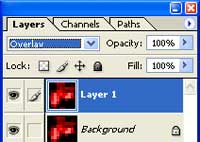 |
5. Duplicate the layer (Ctrl+J) and change the blending mode to Overlay. |
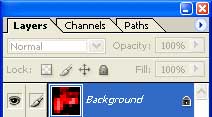 |
6. Add a slight Gaussian Blur (Filter> Blur> Gaussian Blur) with a radius around 10 pixels then merge the two layers (Ctrl+E). |
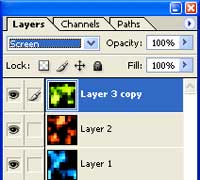 |
7. Create a new layer and repeat steps 1-6 but use a different color in step 4. Repeat those steps two more times then change the blending mode of the top three layers to Screen. |
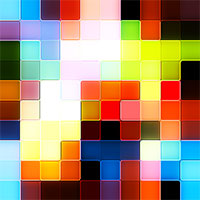 |
8. Here is the result that I got. |
