


Randomly generated 3D pipes with a neon glow.
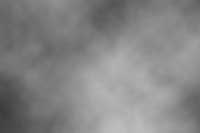 |
1. Create a new document and add a Clouds filter (Filter> Render> Clouds). |
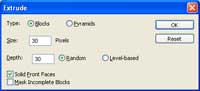 |
2. Use the Extrude filter (Filter> Stylize> Extrude) to set these properties:
Type: Blocks
|
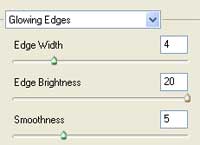 |
3. Add a Glowing Edges filter (Filter> Stylize> Glowing Edges) with these settings:
Edge Wdith: 4
|
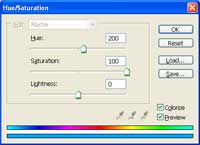 |
4. Colorize the layer using the Hue/Saturation tool (Ctrl+U). These are the settings I used:
Colorize: Checked
|
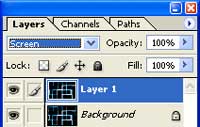 |
5. Duplicate the layer (Ctrl+J) and change the blending mode to Screen. |
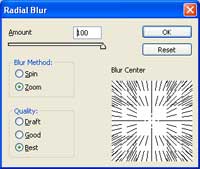 |
6. Add a Radial Blur filter (Filter> Blur> Radial Blur) and use these settings:
Amount: 100
|
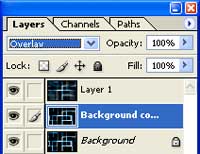 |
7. Duplicate the background layer (Ctrl+J) and change the blending mode to Overlay. |
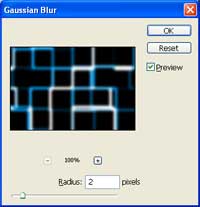 |
8. Add a slight Gaussian Blur to the new layer (Filter> Blur> Gaussian Blur). |
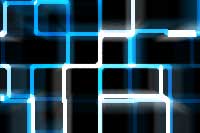 |
9. Here is the result that I got. |
