Make text wrap around a circle.
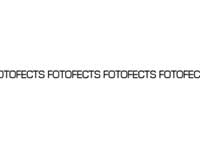 |
1. Create a new document and use the "Text" tool (T) to create a line of text. |
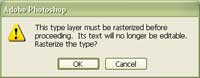 |
2. Apply a "Polar Coordinates" filter. When warns that the text will be rasterized, click OK. |
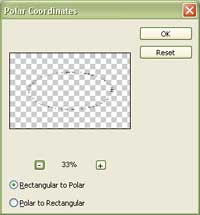 |
3. In the "Polar coordinates" dialog, select "Rectangular to Polar" and click OK. |
 |
4. Your text is now curved but isn't proportional. |
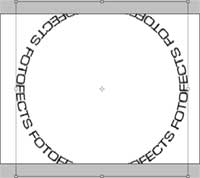 |
5. Use the "Transform" tool (Ctrl+T) to increase the height. |
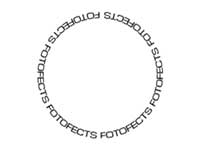 |
6. Resize the text so that it fits in the document. |
