
Easily correct the temperature of any photograph. Fixing the temperature will also slightly fix the white balance and exposure.
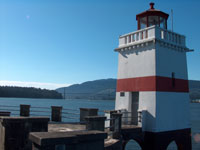 |
1. Open the image for editing. |
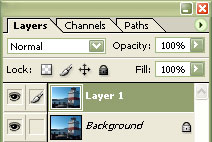 |
2. Duplicate the layer (Ctrl+J). |
 |
3. On the new layer, apply an "Average" filter (Filter> Blur> Average). |
 |
4. Inverse the current layer (Ctrl+I). |
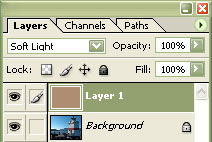 |
5. Set the current layer's blending mode to "Soft Light". |
|
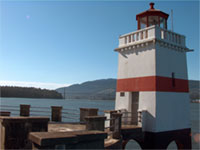
6. Try this effect with your other photographs and see how this technique will make the rest of your photos look better. Rollover the image on the left of this step to see the original image before this technique was applied. |
