

Paint formed in a sophisticated and ornate random pattern.
1 |
 |
Create a new 1000x1000 pixels document. |
2 |
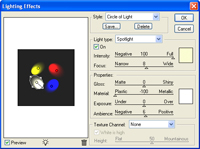 |
Apply a "Lighting Effects" filter (Filter> Render> Lighting Effects" with the following properties: Style: Circle of Light Click OK. |
3 |
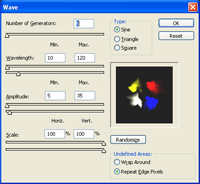 |
Apply a "Wave" filter (Filter> Distort> Wave) with the default settings. |
4 |
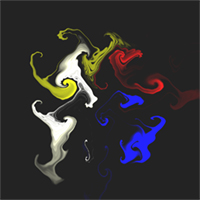 |
Repeat the filter (Ctrl+F) 10 times. |
5 |
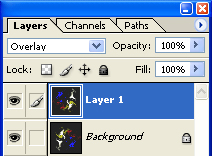 |
Duplicate the current layer (Ctrl+J), rotate the layer by 180º (Edit> Transform> Rotate 180º) and change the layers blending mode to "Overlay". |
6 |
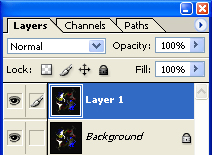 |
Merge the top layer with the bottom layer (Ctrl+E) and duplicate the merged layer (Ctrl+J). |
7 |
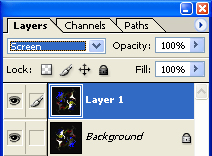 |
Rotate the new layer 90º (Edit> Transform> Rotate 90º) and change the layer's blending mode to "Screen". |
8 |
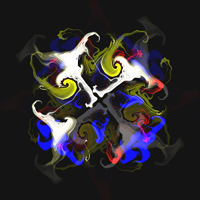 |
The result will be different everytime you do create this fractal. |
9 |
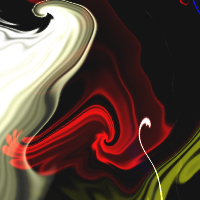 |
Here is a cropped area of a high resolution version. |
