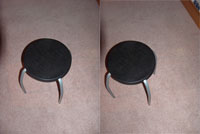
You can still create stereogram images if your camera does not have a stereogram feature with this tutorial.
| 1 |
|
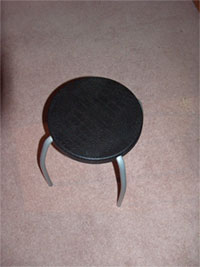
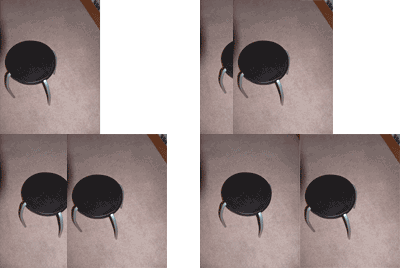
Take two photographs of an object; one with the left eye and one with the right eye. This will create two image in two different views. Open the image taken with the left eye. |
| 2 |
|
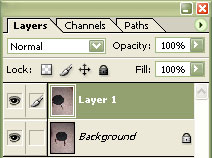
Open the image taken with the right eye. With the windows cascaded (Window> Arrange> Cascade), drag the image taken with the right eye to the other image window while holding the shift button to create a new layer in the first exposure, |
| 3 |
|
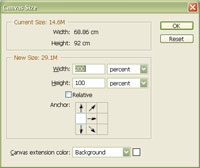
Use the "Canvas Size" tool (Image> Canvas Size) to set the "Width" to "200 percent". Choose the middle left arrow as the "Anchor". Click OK. |
| 4 |
|
With the layer containing the photograph taken with the left eye, use the "Move" tool (M) to drag the photograph to the right side while holding the "Shift" key. |
| 5 |
|
Print your image and view it with a stereo viewer such as the Pentax Stereo Viewer. |