1) Make a new document, anysize doesn't matter. I used 400width by 100height. Press CNTRL+D to reset your pallete colors. Start off with any color of background, I used a dark grey.
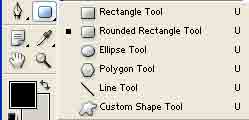
2) Select the Rounded Shape Tool:
Ok first off we want to select the Fill Pixels and change the radius down to 5%:
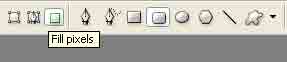
By having fill pixels selected this will save us from having to Rasterize the layer :D.
3) Make a New Layer and then make a nice rounded square like below:

4) Right click the layer and go to blending options. Apply all these styles:
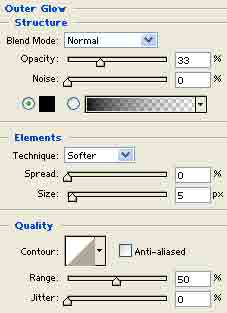
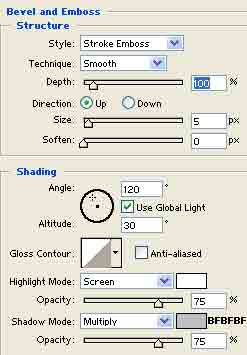
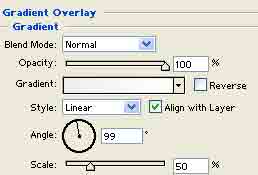
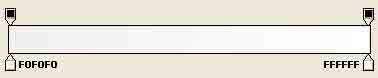
Now you should have something like this:

5) Find a nice site that provides free icons, their are lots of sites around that do! I used icons I made from a few months ago, this is my final effect with the buttons:

If curious about what font I used. Here it is:
Tahoma Style: Bold Size: 12pt.
