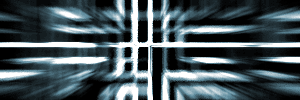
Learn how to make a cool abstract hyperwire effect in photoshop!
First choose the foreground color as black and the background as white
Then go to Filter : Render : Clouds
Then Filter : Pixelize : Mosaic [ 15 pixels ]
Then Blur : Radial Blur [ Zoom / 20 ]
Then Brush Strokes : Accent edges [ width 2 / brightness 38 / smoothness 5]
Then Stylize : Find edges
Then Image : Adjust : Invert [or] Ctrl+i
Then Blur : Radial Blur [Zoom / 60]
Then go to Image : Adjust : Levels [or] Ctrl + L and put 60 in the third input level field
Then go Image : Adjust : Brightness/Contrast and set +30 to contrast
Then press Ctrl + U to change your colour.
And here is what you will sorta end up with: