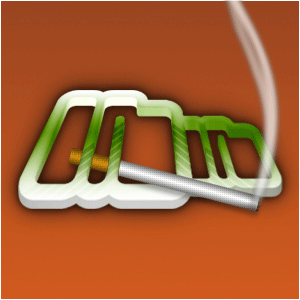
Open up a new document with a logo or a text in it on a seperate layer from the background;
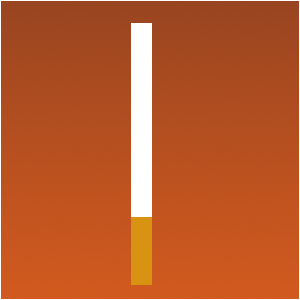
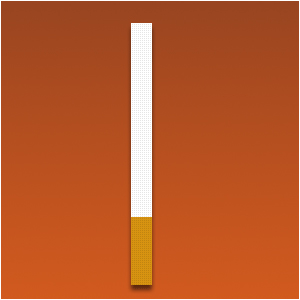
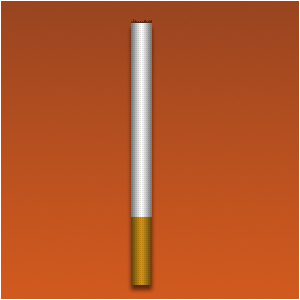
Hide it and create with the retangular marquee-tool a cigarette-shape and fill it with the colors white and brown;
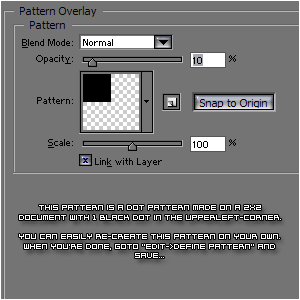
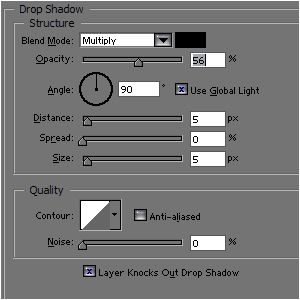
Add these layer-styles to the whole cigarette;
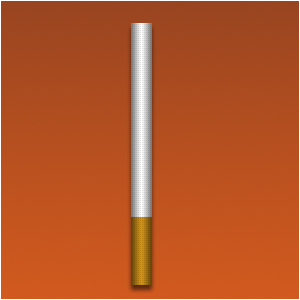
It should look like this;
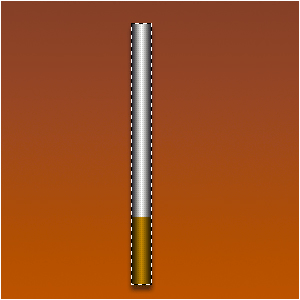
Select the cigarette and create a new layer;
Select the reflected-gradient and make it "Black-Transparent-Black";
Lower the opacity of the gradient-layer;
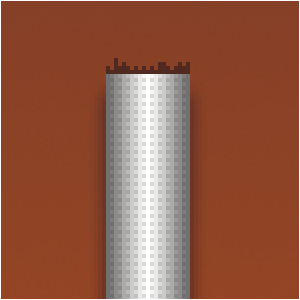
Add some burn-marks with the pencil-tool on the same layer as the cigarette;
Here comes the tricky part: Copy the layer-style of the
cigarette, merge all the cigarette-layers (gradient, burn-marks and the
actual cigarette) together.
Now paste the layer-style you copier earlier;
Make the logo/text visible again and position the cigarette
(NOTE: notice the shadow moves "with you" when you leave the
layer-style intact);
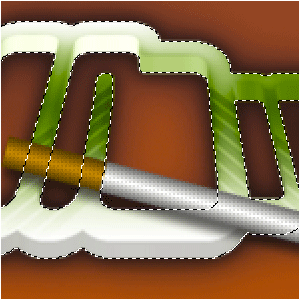
Select the WHOLE logo or text without their possible layer-styles;
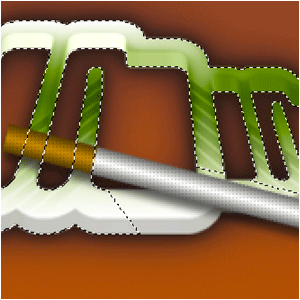
Grab the polygonal-lassotool and hold down ALT and cut the parts you want to keep visible out of the selection;
Press DELETE;
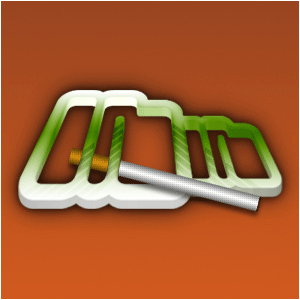
And you're done. You can add some smoke if you want...