1. Begin with a new file, I chose 350x200 for the size and with a white background. Now set your foreground color to #19C602, then take the Text Tool and type in your text.

2. Now go to the layers palette and hold down Ctrl and click on the text layer, then create a new layer in the layers palette, then go to Select>Modify>Contract and set the Contract By to 2 pixels. Then right click on the canvas and choose Fill>Color and set the color to #04FF33.

3. Go to Filter>Blur>Gaussian Blur and set the Radius to 1 pixels. Then turn off the Eye icon on the Background layer, then press Shft+Ctrl+E or go to Layer>Merge Visible, then turn back the Eye icon.
4. Now when you are in the layers palette right click on layer 1 and choose Blending Options, then apply this settings.
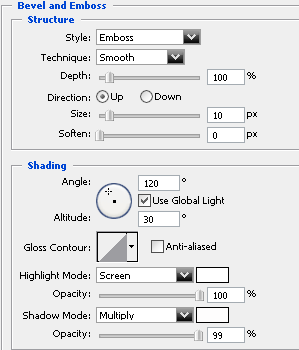
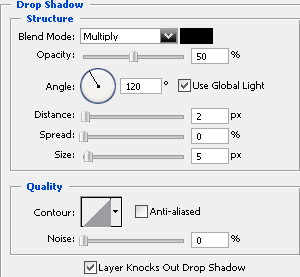
Press OK and you are done! This is what I came up with.