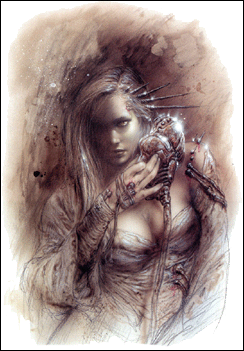
1. Start with opening a random image, any image will do
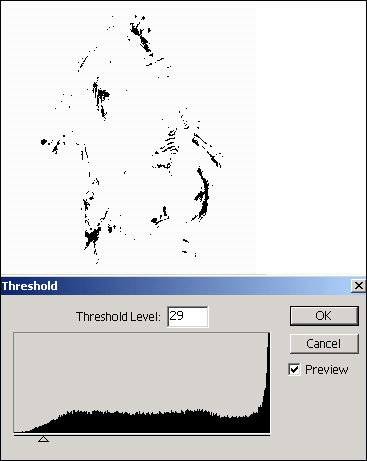
2. Image > Adjustments > Treshold
Move the slider so you get a similar effect, you'll see the Grunge Brushes appear
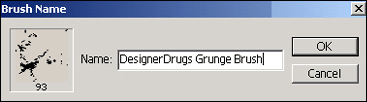
3. Now we need to select a part from our image that will be the brush, so go ahead and crop your image or select a part and copy it on a new document

4. Go to Edit > Define Brush and give your brush a name, hit OK and that's it
5. If you want to use your brush, select the Brush Tool (B) and select your Brush from the list of Brushes (red rectangle), it should be located all the way down
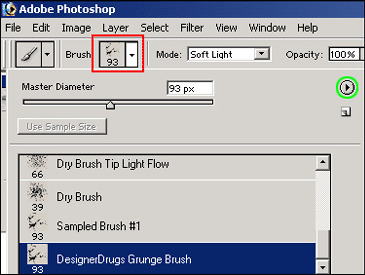
6. If you want to save your brush, click on the little black triangle (see image Step 5, green circle) and click on Preset Manager, select your brush and hit Save Set, give it a name and you're done. If you want to load your brush or other people's brushes, you once again click on the little black triangle and then you hit Load Brushes
