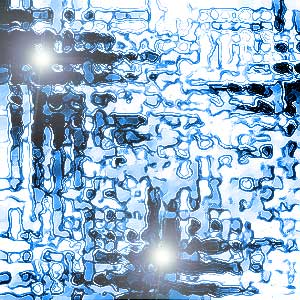
1. You will need a blank canvas, 300 x 300 pixels and a white background.
2. Reset your colour palette by pressing D.
3. Use Filter > Render Clouds.
4. Now Filter > Distort > Wave, select Type as Square and hit randomize until you find something neat like mine.
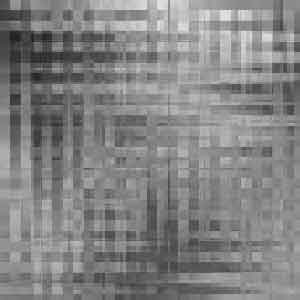
5. Next use Filter > Artistic > Dry Brush with Brush Size: 2, Brush Detail: 8, Texture: 1.
6. For added effect use Filter > Distort > Ripple on 100%.
7. Filter > Brush Strokes > Ink Outlines with Stroke Length: 30, Dark Intensity: 50 and Light Intensity: 8.
8. Now duplicate your layer.
9. Apply Filter > Blur > Gaussian Blur on 2.0 pixels.
10. Set the Blending Mode to Screen.
11. Merge the 2 layers together.
12. Now simply press Ctrl + U to give your effect some life.
13. I also played with the Brightness/Contrast control (under Image > Adjust) and added a couple of Lens Flares to remove those darker areas. Enjoy!