1. Start with a blank image, 300x300 pixels.
2. Fill the background with black (#000000). I'm sure you don't need a screenshot yet.
3. Now Filter > Render > Lens Flare, choose 50-300mm Zoom with 150% Brightness.
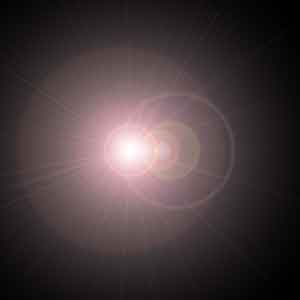
4. Apply Filter > Distort > Wave and I just chose the Type as Square and pressed Randomize because I am too lazy to play with the settings. Here is mine anyway.
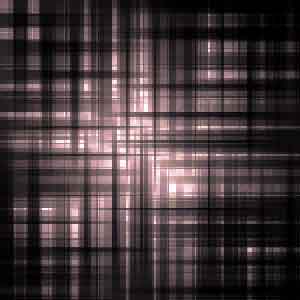
5. Filter > Brush Strokes > Crosshatch with Stroke Length: 9, Sharpness: 6, Strength: 1.
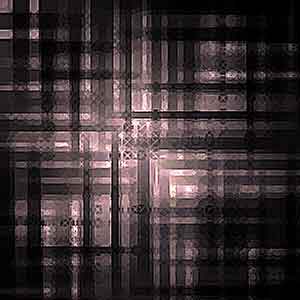
6. Next apply Filter > Distort > Ripple with an amount of 100-150%.
7. Now press Ctrl + U and check colourize. Give it some colour and add some text over the top if you wish, and there you have it!