Welcome! Open up your image that you want to apply this text effect to.
I feel this really makes a grunge image, but of course can be used for
anything! Alot of this depends on the font. In this tutorial, I use
Base 02. Also
note the colours in this tutorial don't really matter. If you have the
colour you want it anyway. Don't change your foreground and background.
If at any time you asked to rsterize the type, press OK.
Phase One:
Set your foreground colour to: 2F7ECD
And your background to: FFFFFF
S1: Get your text tool, and write what text you want.
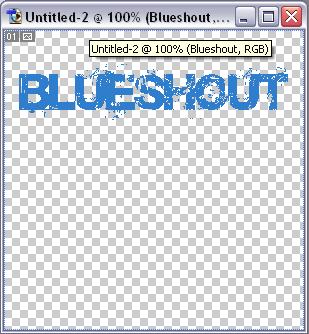
S2: Now, go Filter>Stylize>Wind Use these settings: 'Wind', and from 'left to right'
S3: Filter>blur>blur
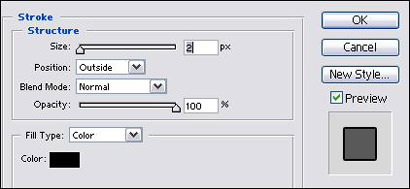
S4: Add this Stroke
Phase Two:
You are finished, you can change the colour by holding 'Ctrl+U', and pressing the colorize box:
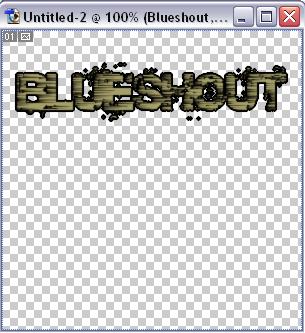
Add on's.
S1: From here, you can do what you like., and more effects, ect. Try
adding a crome ;) Looks good. I've found if you grab the polygon lasso
tool, and make triangles, then press delete, it adds to that 'grunge'
feel.
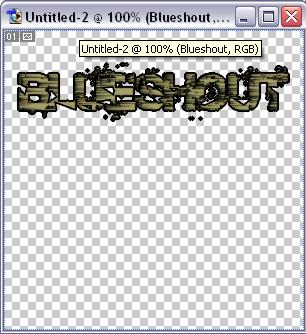
You should now have something like this: I just dropped a background behind it ;)
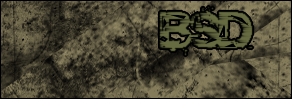
If not, don't worry, just keep on trying.
