Start a new document 640x480 (or any size you want).
Press the D to reset your colors to black and white.

The go to Filter->Render-Clouds
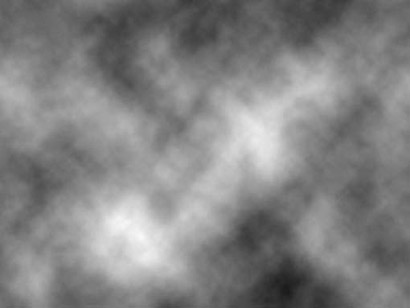
Now apply the unsharp filter: Filter->Sharpen->Unsharp
Mask.
Amount: 500% Radius: 26px. Threshold: 0
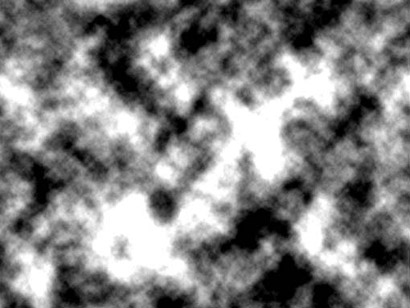
Now apply the WAVE distort filter: Filter->Distort->Wave and match this settings:
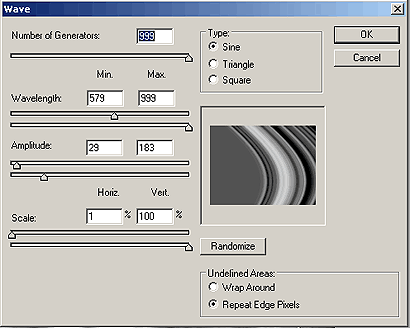
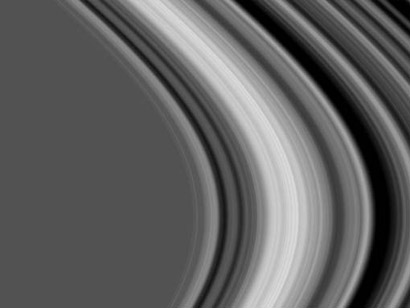
Now duplicate this layer. Then apply the following
filter to the new duplicated layer:
Filter-> Stylize->Extrude
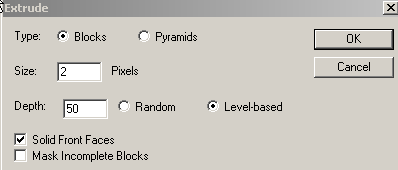
Apply the Gaussian Blur filter to the duplicated layer: Filter->Blur->Gaussian Blur: 2.0px
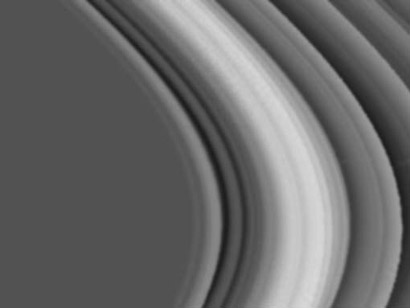
Now set the top (duplicated layer) layer's blending mode to: "Darken", and tune the opacity down to about 70%. Now flatten the image: Layer->Flatten Image.
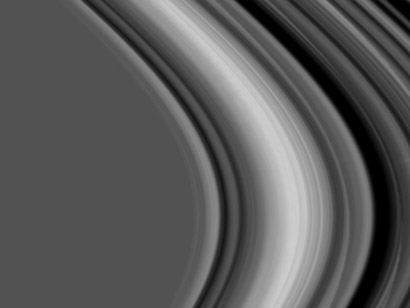
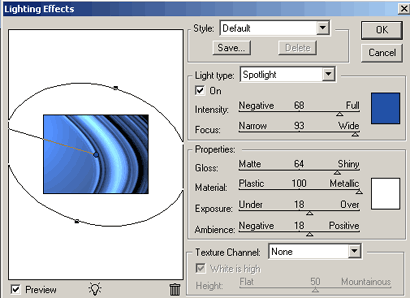
Next we add some colors to it, go to Filter->Render->Lighting Effects: Now feel free to play around with the settings here to get your own result. Here is one I used:
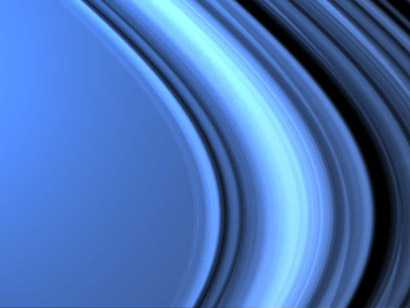
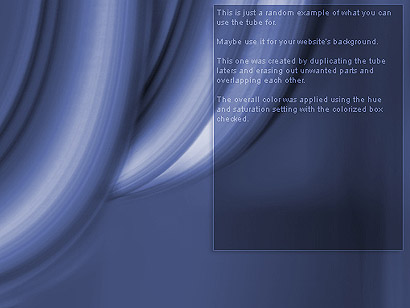
There you go, what you could do now is cut out parts of it to use for your artwork, here is an example.