Start a new document 600x600. Press "D" to reset your colors to black and white.

Then go to Filters->Renders->Clouds.

Choose the Type Tool and create your text in white. Make it as big as possible, then duplicate this text layer.
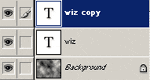
Merge the first text layer with the background, then hide the top text layer (wiz copy).


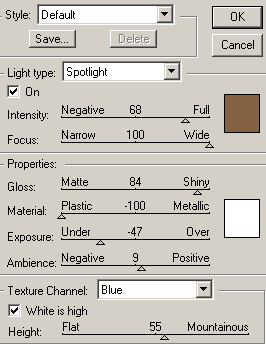
Now go to Filter->Render->Lighting Effects.


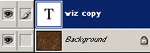
Now show/enable the top layer.

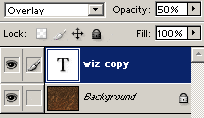
Set the blending mode of the top layer to "Overlay" and opacity to 50%.

Here is mine: