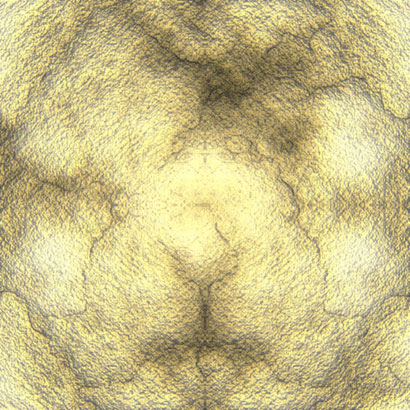
Start a new document 600x600 with white background. Reset your colors to black and white

Create a new layer, then go to filter->render->clouds
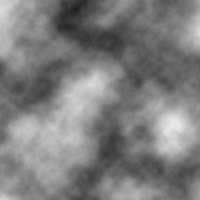
Now duplicate this clouds layer twice, hence giving you 3 same clouds layer.
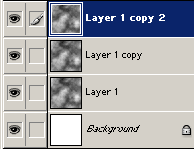
Select the "Layer 1 copy 2", then go to Edit-> Transform->Flip Horizontal. Set this layer's blending mode to "lighten".
Select the "Layer 1 copy", then go to Edit->Transform->Flip Vertical. Set this layer's blending mode to "Lighten"
Then go to Layer->flatten Image.
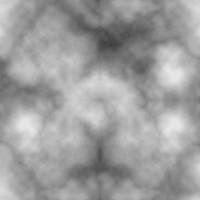
Now go to Filter->Sharpen->Unsharp
Mask
Amount: 500%
Radius: 2
Threshold:0
Then go to Filter->Sharpen->Sharpen. Press CTRL+F to reapply.
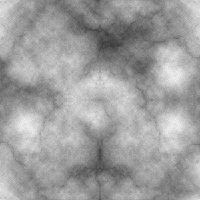
Apply the following Lighting Effect:
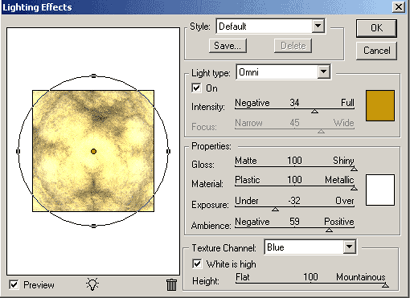
The color used is: #C5940B
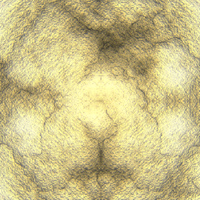
Here is mine.