

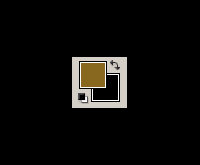
Start with a black background, and set your foreground abd background color to #87681E and Black.

Set : Brightness: 40 and contrast: -30

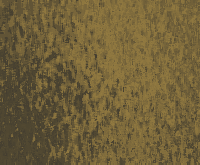
Set:
Stroke Length: 5
Spray Radius: 20
Stroke Direction: Horizontal
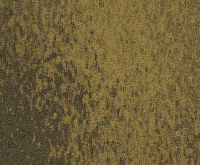
Set:
Amount: 3
Distribution: Gausian
Monochromatic: Checked
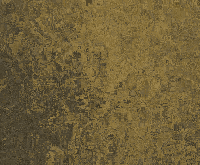
Go to Filter>Brush Strokes>Splatter
Set:
Radius: 25
Smoothness: 15
Go to Filter > Sharpen>Unsharp
Mask
Set:
Amount: 70%
Radius: 55px
Threshold: 0
Do it 1 more time, this time, set:
Amount: 50%
Radius: 40px
Threshold: 0
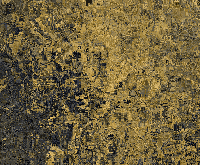
Use the type tool to create a new
text. and apply the following layer styles:
DropShadow: Inner Shadow and
1 pixel stroke. you can play around
with these.

Then set the text layer blending mode to "Linear
Dodge"
