


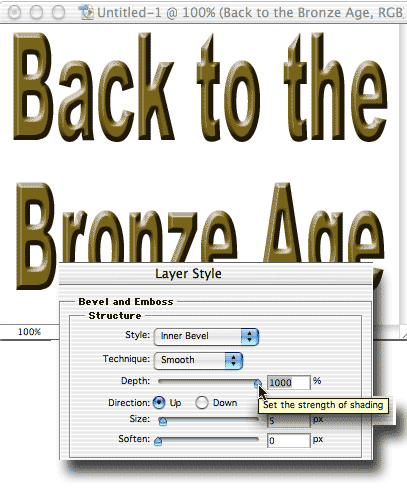
Set some type using a gold, brass, or bronze tone. We'll use RGB 125/100/25. Make the type large and bold. Add a Bevel and Emboss layer effect. Change the Depth slider to 1000% (all the way to the right). For high-resolution images, you can increase the Size slider.
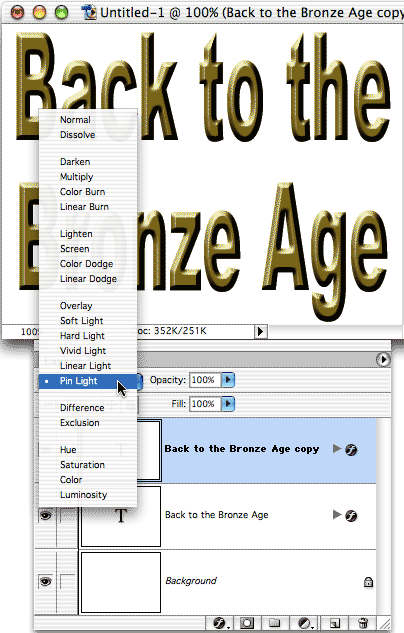
To emphasize the effect, drag the layer to the New Layer button of the Layers palette and change the upper copy's blending mode to Pin Light.
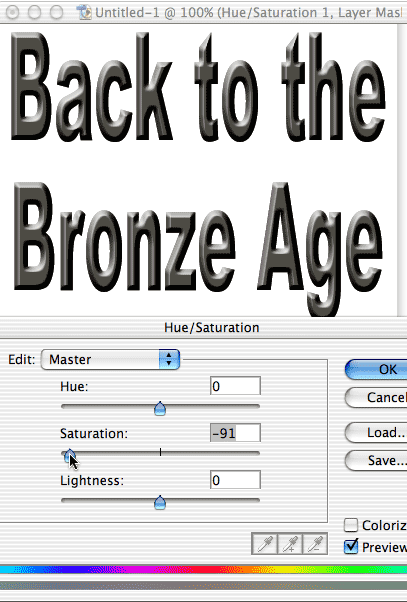
A Hue/Saturation adjustment layer can be added. Reducing the Saturation level moves the effect into a dull steel appearance. In this case, a layer set was created from the two type layers and the adjustment layer was added to the set. (Remember to change the layer set's blending mode from Pass Through to Normal to restrict the adjustment layer to the set.)
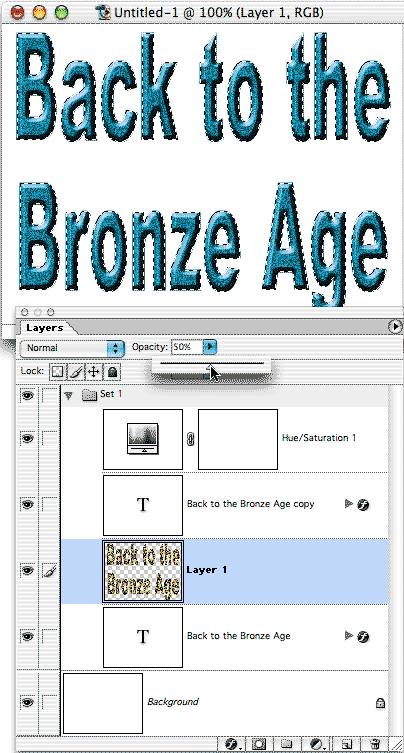
And how about that metallic-fleck paint seen on autos and bicycles? Change the Hue and increase the Saturation in your adjustment layer. Then, to add the flecks, follow these steps:
1. Add a new blank layer and move it between the two type layers in the Layers palette.
2. Command-click (Mac) or Control-click (Windows) on the thumbnail of either of the type layers to make a selection in the shape of the type.
3. Fill the selection with the type color. (If need be, hide the Hue/Saturation adjustment layer and click with the eyedropper on the type.)
4. Filter> Noise> Add Noise. The amount will depend on you needs, but start with about 50%.
5. Reduce the opacity of the new layer as necessary.
 Pete
Bauer is the Help Desk Director for NAPP, as well
as a Contributing Writer for Photoshop User and Mac Design
magazines. His books include "Special Edition Using
Adobe Photoshop 7" (with Jeff Foster), "Special
Edition Using Adobe Illustrator 10," "Sams Teach
Yourself Adobe Illustrator 10 in 24 Hours" (with Mordy
Golding), and "Special Edition Using Adobe Illustrator
9." Pete writes documentation for a variety of computer
graphics related products, as well as testing software
for a number of companies. As a computer graphics efficiency
consultant, Pete specializes in customized training programs.
He is based in Columbus, Ohio, and can be contacted via
Pete
Bauer is the Help Desk Director for NAPP, as well
as a Contributing Writer for Photoshop User and Mac Design
magazines. His books include "Special Edition Using
Adobe Photoshop 7" (with Jeff Foster), "Special
Edition Using Adobe Illustrator 10," "Sams Teach
Yourself Adobe Illustrator 10 in 24 Hours" (with Mordy
Golding), and "Special Edition Using Adobe Illustrator
9." Pete writes documentation for a variety of computer
graphics related products, as well as testing software
for a number of companies. As a computer graphics efficiency
consultant, Pete specializes in customized training programs.
He is based in Columbus, Ohio, and can be contacted via
