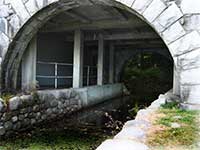
1 | 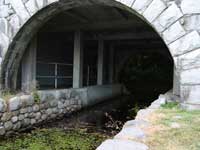 | Open the image for editing. |
2 | 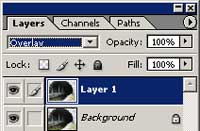 | Duplicate the current layer and change the blending mode of the new layer to Overlay. |
3 | 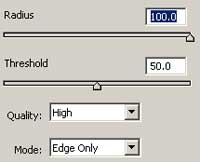 | With the new layer selected, use the Smart Blur tool (Filter> Blur> Smart Blur) to apply the following properties: Radius: 100 Threshold: 50 Quality: High Mode: Edge Only |
4 | 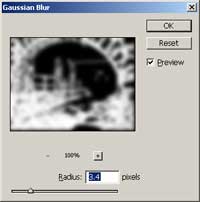 | Apply
a Gaussian Blur (Filter> Blur> Gaussian Blur) to the current
layer. Select a radius that will remove all right angles. |
5 | Rollover the image in this step to see the original image before this Photoshop technique was applied. | |
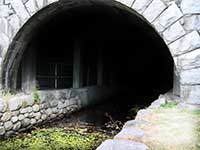
6 | For a reverse effect to reveal more detail, invert the current layer (Ctrl+I). Rollover the image in this step to see the original image before this Photoshop technique was applied. | |