
1 | 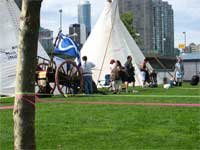 | Open the image for editing. |
2 | 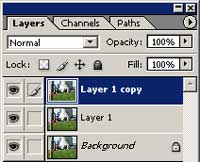 | Duplicate the current layer twice (Ctrl+J). |
3 | 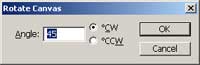 | Use the Rotate Canvas tool (Image> Rotate Canvas> Arbitrary) to apply the following properties: Angle: 45ºCW |
4 | 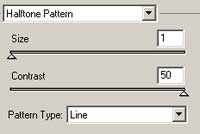 | With
the top layer selected, add a Halftone Pattern filter (Filter>
Sketch> Halftone Pattern) with the following properties: Size: 1 Contrast: 50 Pattern Type: Line |
5 | Rotate Canvas tool (Image> Rotate Canvas> Arbitrary) to apply the following properties: Angle: -90ºCW | |
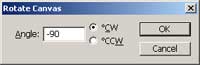
6 | 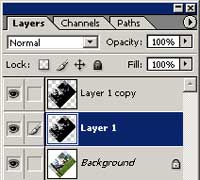 | Select the middle layer and apply the previous filter used (Ctrl+F). |
7 | 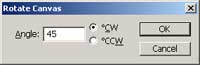 | Rotate Canvas tool (Image> Rotate Canvas> Arbitrary) to apply the following properties: Angle: 45ºCW |
8 | 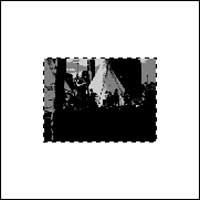 | Use the Magic Wand tool (W) to select the white area in the image. Inverse the selection (Shift+Ctrl+I) and crop the selection (Image> Crop). |
9 | 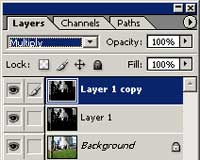 | Change the blending mode of the top layer to Multiply. |
10 | With the top layer selected, merge down (Ctrl+E) and change the blending mode of the merged layers to Overlay. | |
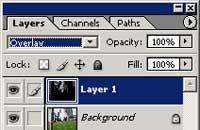
11 | 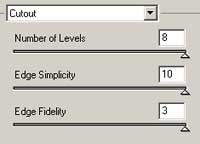 | Select the bottom layer and apply a Cutout filter (Filter> Artistic> Cutout) with the following properties: Number of Levels: 8 Edge Simplicity: 10 Edge Fidelity: 3 |
12 | 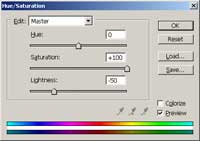 | Use the Hue/Saturation tool (Ctrl+U) to apply the following properties: Hue: 0 Saturation: +100 Lightness: -50 |
13 | 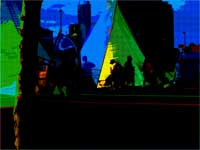 | Rollover the image in this step to see the original image before this Photoshop technique was applied. |
14 | 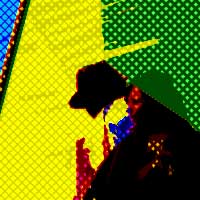 | Here is a cropped area from a high resolution version of the image created with this tutorial. |
