

1 | 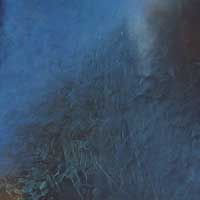 | Open the image for editing. |
2 | 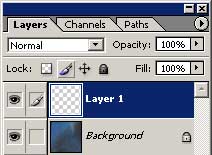 | Duplicate the current layer (Ctrl+J). |
3 | 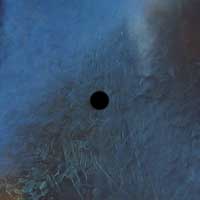 | On the new layer, use the Brush tool (B) to paint a black dot on where the bullet hole will be. |
4 | 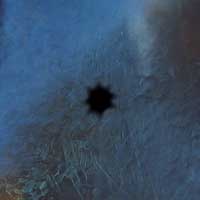 | Use the Smudge tool (R) to smudge several times from the center out in different angles. |
5 | To add more bullet holes, repeat steps 3 and 4 on the same layer before continuing. Apply a Glowing Edges filter (Filter> Stylize> Glowing Edges) to the current layer with the following properties: Edge Width: 8 Edge Brightness: 10 Smoothness: 15 | |
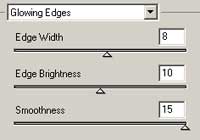
6 | 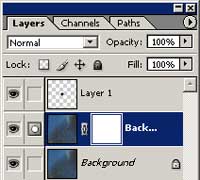 | Duplicate the bottom layer (Ctrl+J) and add a layer mask to the new layer (Layer> Add Layer Mask> Reveal All) |
7 | 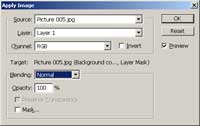 | With the layer mask selected, use the Apply Image tool (Image> Apply Image) to apply the following properties: Layer: Layer 1 Channel: RGB Invert: Unchecked Blending: Normal Opacity: 100% |
8 | 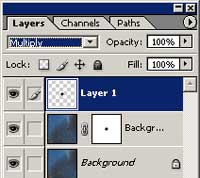 | Change the blending mode of the top layer to Multiply. |
9 | 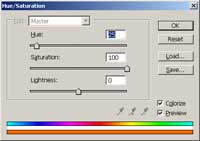 | With the bottom layer selected, use the Hue/Saturation tool (Ctrl+U) to apply the following properties: Colorize: Checked Hue: 25 Saturation: 100 Lightness: 0 |
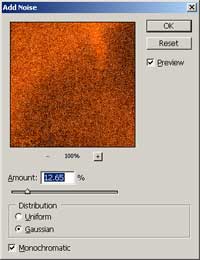
10 | Use the Add Noise filter (Filter> Noise> Add Noise) to apply the following properties: Amount: 10-15% Distribution: Gaussian Monochromatic: Checked | |
11 | 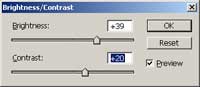 | Use the Brightness/Contrast tool (Image> Adjustments> Brightness/Contrast) to adjust the visibility of the rust. |
12 | 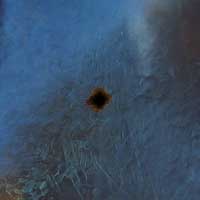 | Rollover the image in this step to see the original image before this Photoshop technique was applied. |
