1 |
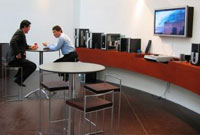 |
Open the image for editing. |
2 |
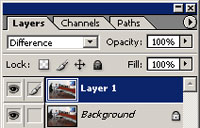 |
Duplicate the current layer and change the blending mode of the new layer to Difference. |
3 |
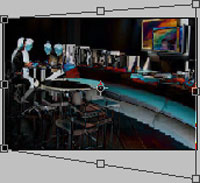 |
Use the Free Transform tool (Ctrl+T) to transform the current layer. While holding the Ctrl key, increase the distance of the corners so that closer objects appears closer. For example, in the picture I'm using, the right side appears closer so I will increase the distance of the top and bottom right corners. |
4 |
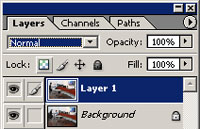 |
Change the blending mode of the current
layer back to Normal. |
5 |
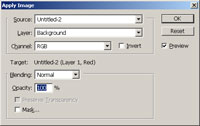
In the Channels window (Window> Channels),
select the red channel (Ctrl+1). With the red channel selected, use the
Apply Image tool (Image> Apply Image) to apply the following properties: Layer: Background Channel: RGB Invert: Unchecked Blending: Normal Opacity: 100% |
|
6 |
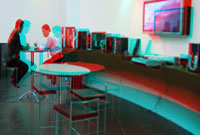
Rollover the image in this step to see the original image before this Photoshop technique was applied. | |