


1 | 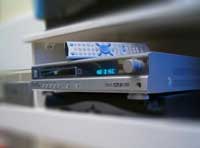 | Open the image for editing. |
2 | 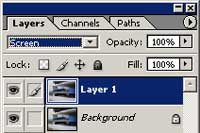 | Duplicate the current layer and change the blending mode of the new layer to Screen. |
3 | 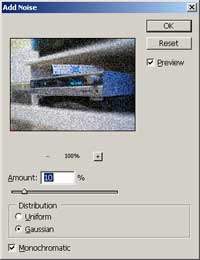 | With the new layer selected, apply an Add Noise filter (Filter> Noise> Add Noise) with the following properties: Amount: 10% Distribution: Gaussian Monochromatic: Checked |
4 | 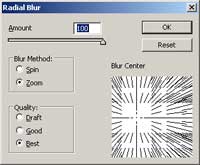 | Apply a Radial Blur filter (Filter> Blur> Radial Blur) with the following properties: Amount: 100 Blur Method: Zoom Quality: Best Blur Center: Position the center to the focus area |
5 | 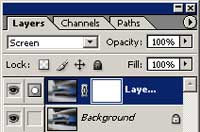 | Add a layer mask (Layer> Add Layer Mask> Reveal All) to the current layer. |
6 | 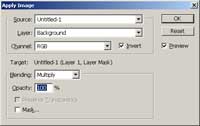 | With the layer mask selected, use the Apply Image tool (Image> Apply Image) to apply the following properties: Layer: Background Channel: RGB Invert: Checked Blending: Multiply Opacity: 100% |
7 | 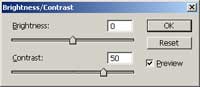 | Using the Brightness/Contrast tool (Image> Adjustments> Brightness/Contrast), apply the following properties: Brightness: 0 Contrast: 50 |
8 | 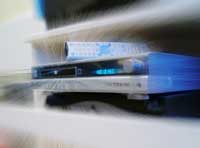 | Rollover the image in this step to see the original image before this Photoshop Elements technique was applied. |
