

I've always been one to customise things; it just gives things a personal touch. In 3ds Max you can do the same. Prehaps you've seen in design magazines the interface is a nice dark grey or another colour. With a couple of kicks of the mouse, you can be changing it to suit your eyes, or needs.
Step 1
Open up max if it isn't already open
Step 2
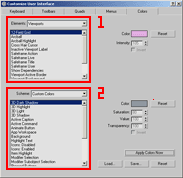
Locate the 'Customize User Interface' button from under the 'Customize' menu. Once opened up, you should be presented with a dialogue box similar to the picture below:
Step 3a
Just like you would 'skin' your own windows desktop, just change the colours to suit you. You can change the colours under the first drop down menu (see #1 on picture, above), and you can change the colours under the second drop down menu (see #2 on picture, above).
Step 3b
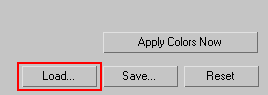
If you don't want to change the colours individually, you can choose a theme. There are a couple themes that come with Max. Just click the 'Load...' button as seen below:
Step 4
Once you're done with changing individual colours as in Step 3a, then click the 'Apply Colors Now' button to apply the changes. If you've made a mistake, no biggy, just select the 'DefaultUI.clr' theme by clicking the 'Load...' button as shown in Step 3b.
Step 5
Close all dialogue boxes and get started experimenting with Max! Look at the other tutorials here to get started.
