Here is a great way to automate Optimizing a folder of images uses an ImageReady Droplet. (Requires a pre-set of images in a distinct folder)
Open any image in ImageReady, or if you already have an image open in Photoshop, click the last icon on the Toolbar
 to 'Edit in ImageReady'
or alternatively, go 'File/Edit in ImageReady'.
to 'Edit in ImageReady'
or alternatively, go 'File/Edit in ImageReady'.
Once in ImageReady, go 'Window/Optimize' to bring the Optimize Palette to the foreground.
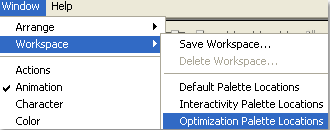
Tip: Go 'Window/Workspace/Optimization Palette Locations' for a clear cut workspace arrangement in dealing with the Optimize Palette.
Pre-arrange a set of images you want to Optimize for the web at a location on your hard drive.
I used a folder of Photoshop native .psd files.
Set your desired Optimization settings. I chose the .jpg option with the following options.
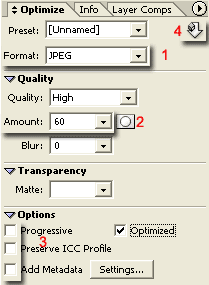
1. Choose .jpg from the list
2. Set the Quality Amount.
3. To reduce file size turn off the lower three options as I have captured above.
4. Finally, click the 'Droplet' icon at the Top of the Optimize Palette.
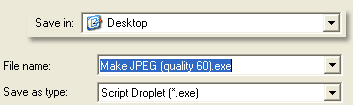
Save the Droplet to an accessible location, such as your Desktop, as I have captured below.
Note: Droplets are application/executable (.exe) scripts.
Next drag and drop the folder of ready-made images onto the Droplet icon thats located on the desktop.
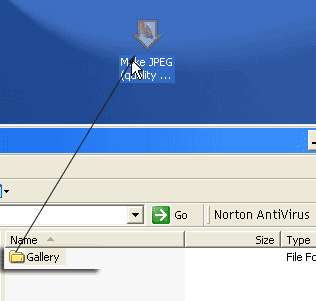
Wait a few seconds for the files to be processed.
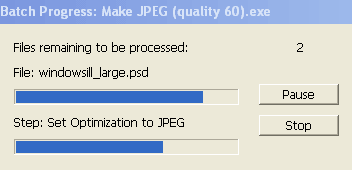
All files in the folder were Optimized to the settings above in a single drag and drop action.
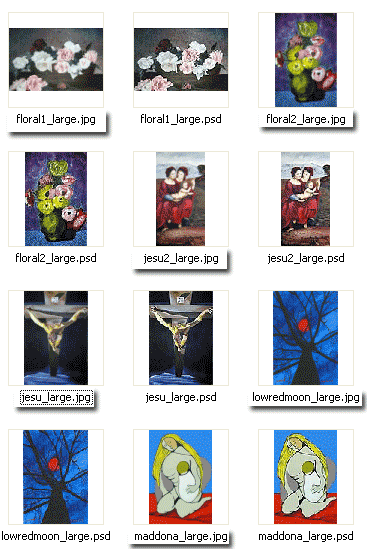
A great way to batch process hundreds of files for the web.
Note: I used the .jpg option above because my images contain mostly textures and or a gradation of colors.
Use a .gif optimization droplet on images that are mostly solid colors, line art or vector artwork.
The Droplet will also process .bmp, .tif and .pdf files.
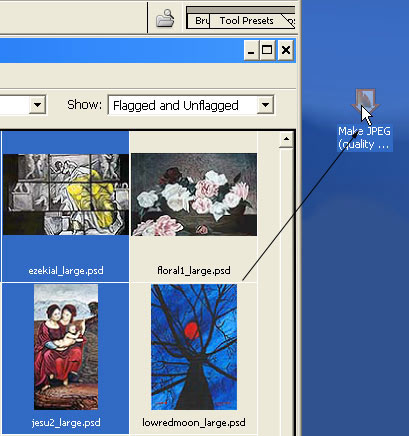
Tip: You can also process selected files from Photoshop File Browser by resizing your windows so that the Desktop Droplet is visible and then drag and drop, as I have captured below.