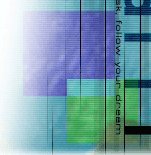
1. Okay open up a existing Photo or a design you already made in the past. We will use the Photoshop's cool Hue and Saturation control I use ALL THE TIME. Now you see the design here I used. I am going to pick up the square marquee tool, (it doesn't have to be square, it can even be TEXT!) and then I am going to apply a different color.

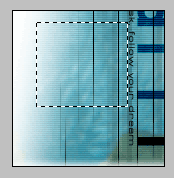
2. And then now go to IMAGE > ADJUST > HUE/SATURATION or just make it easier for yourself and press CTRL + U. And you should get the Hue/Saturation control dialog box. Experiment with the levers. And also experiment with the Saturation and Lightness control to get the right tone you want going.
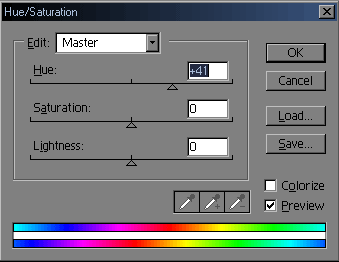
3. Whala. That's it. I made this cool little square block design. It's that easy. You can colorize black and white drawings to color by clicking on the COLORIZE checkbox and adjusting the HUE and SATURATION for black and white images.