


1- Create a new image, 800x800 pixels. Background color Black.
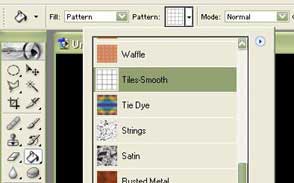
With the Paint Bucket Tool, fill the page with the Tile pattern:
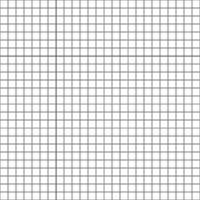
2- Select the Elliptical Marquee Tool.Holding down Shift, make a circular selection filling up most of the image. Then Filter - Distort - Spherize... Amount 100:
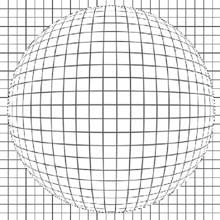
3- Select - Inverse.
Then Edit - Clear
Then Ctrl+D to deselect.
To get rid of the jagged edges, resize the image to 400x400 pixels,
Image - Image Size...
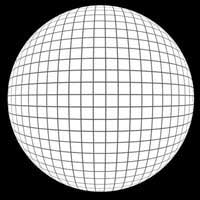
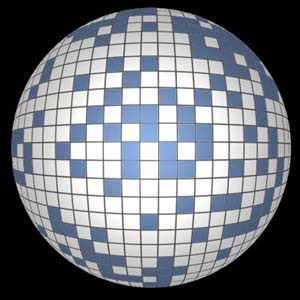
4- With the Paint Bucket Tool, you can fill some squares or add anything you
want.
Then add lighting with Filter - Render - Lighting Effects. Choose the settings
you like...
 Yellowpipe offers Photoshop Tutorials as well as Serious Web Hosting and unique Free Webmaster Tools.
