

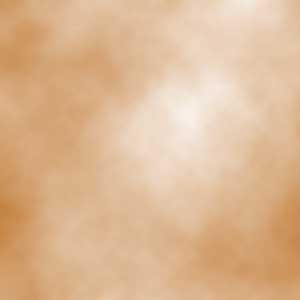
1- First make a new image, chose any two colors (foreground and background), and go to Filter - Render - Clouds:
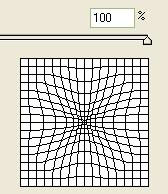
2- Now go to Filter - Distort - Pinch, and set the pinch setting to a high positive value. If you enter negative settings (-100%) as opposed to 100%, the image wont retract, it will expand into a 3D-type sphere. Feel free to experiment though:
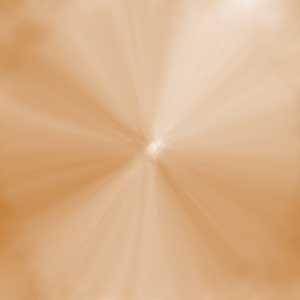
3- Now re-apply the filter, Ctrl + F, say 2 or 3 times, depending on how far in you want the burst to look like:
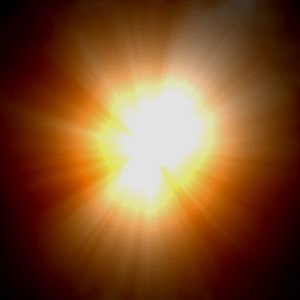
4- From there, add lighting effects to enhance the burst (Omni - shiny, metallic, high exposure and low ambience gives a nice effect to the burst). Then adjust Brightness and Contrast as you wish:
 Yellowpipe offers Photoshop Tutorials as well as Serious Web Hosting and unique Free Webmaster Tools.
