In this tutorial you will learn how to create a sticky tape in Adobe Photoshop with a few simple steps.
1. Open a new document with your image.

Click to enlarge
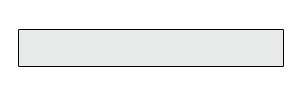
2. Now select the Rectangluar Marquee Tool and make a small rectangle. Fill it with this color - #E8EAEA
3. Set the opacity to 35:
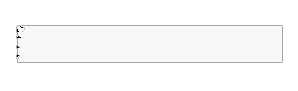
4. Select the Magnetic Marquee tool and scroll at the edges.
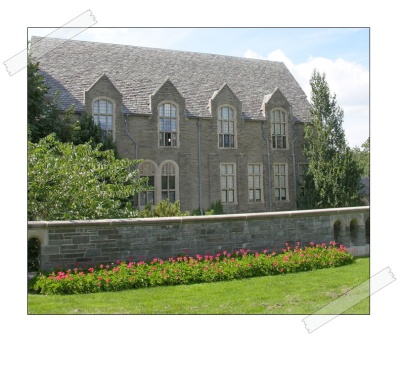
5. Now after doing this to both sides we need to add this tape to our image and rotate it till it looks like my final result.
Click to enlarge
