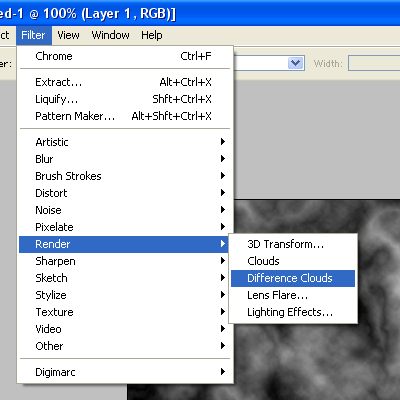
1. Click on Filter > Render > Difference Clouds:
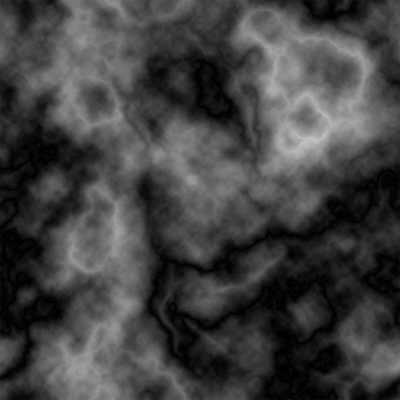
2.Press Ctrl + F and use it untill you get something like this:
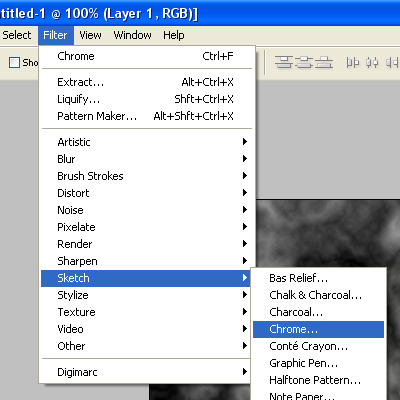
3. Now click on Filter > Sketch > Chrome:
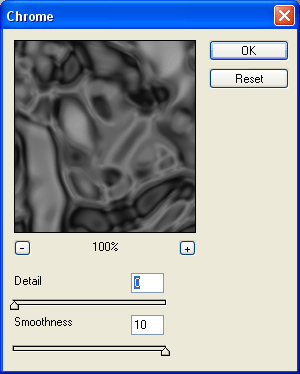
and use these options:
4. Click on Filter > Blur > Radial Blur
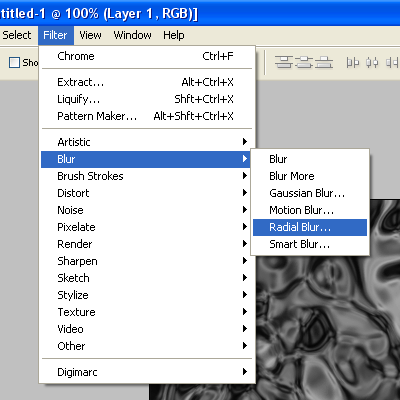
and use these options:
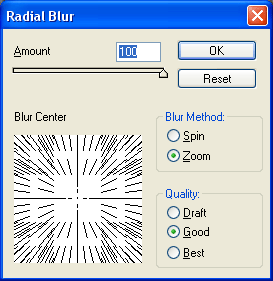
5. Press OK after that click on Filter > Brush Strokes > Ink Outlines:
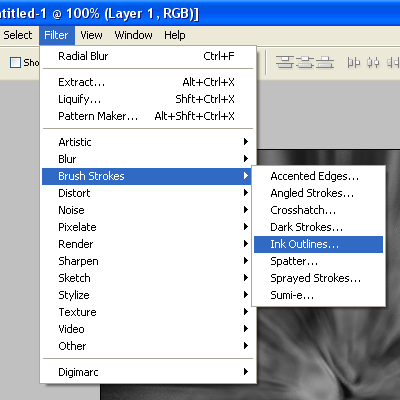
and use the following settings:
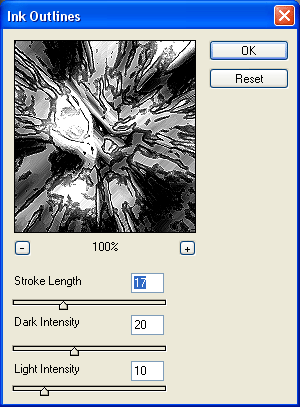
6. Click on Filter > Blur > Gaussion Blur and set the radius 1.4. Add blue to the image (press Ctrl+B and move slider to blue).
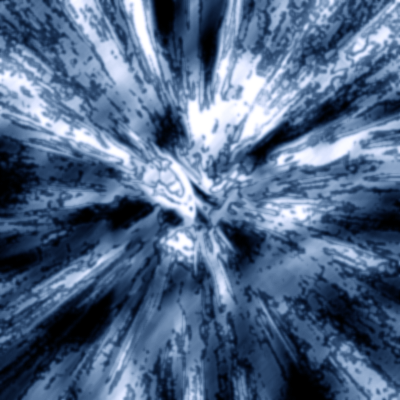
7. Now Press CTRL + J to duplicate the layer. Repeat Step 3. Set the Blending Mode to Vivid Light and you are done.