Step 1: First click on Rounded Tool  and
make a simple shape. Then right click on the shape
and select Blending Options:
and
make a simple shape. Then right click on the shape
and select Blending Options:

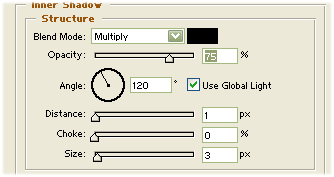
Step 2: Then select Inner Shadow in the blending option:
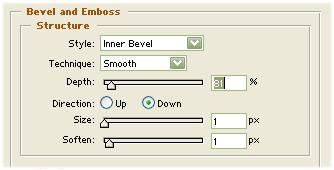
Step 3: Then select Bevel Emboss in the Blending Option:
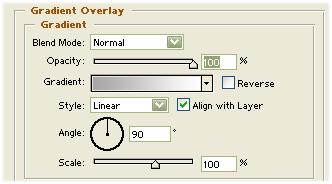
Step 4: Then Gradient Overlay in the Blending Option:
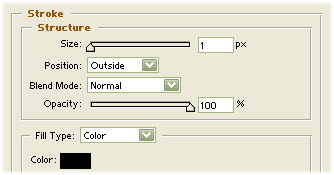
Step 5: Then select Stroke:
Step 6: Then it will be look like this:

Your effect is finished.
