

Step 1: First write a simple text:

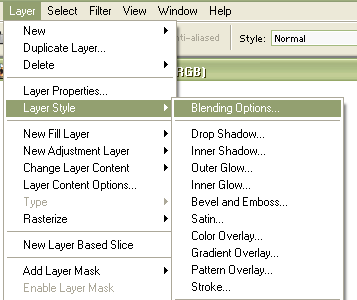
Step 2: Go to Layer > Layer Style > Blending Options:
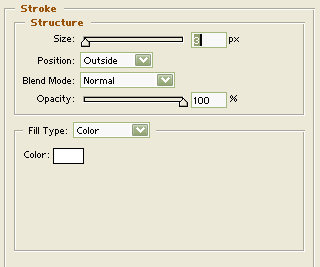
Step 3: Select Stroke with these options :
Step 4: Now click on Drop Shadow with these options:
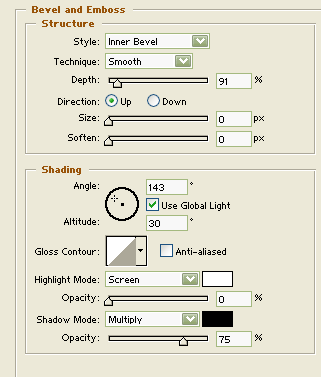
Step 5: Select Bevel and Emboss with these options:

Your Simple Text is Finished.
